v25.04.03 (September 2025)
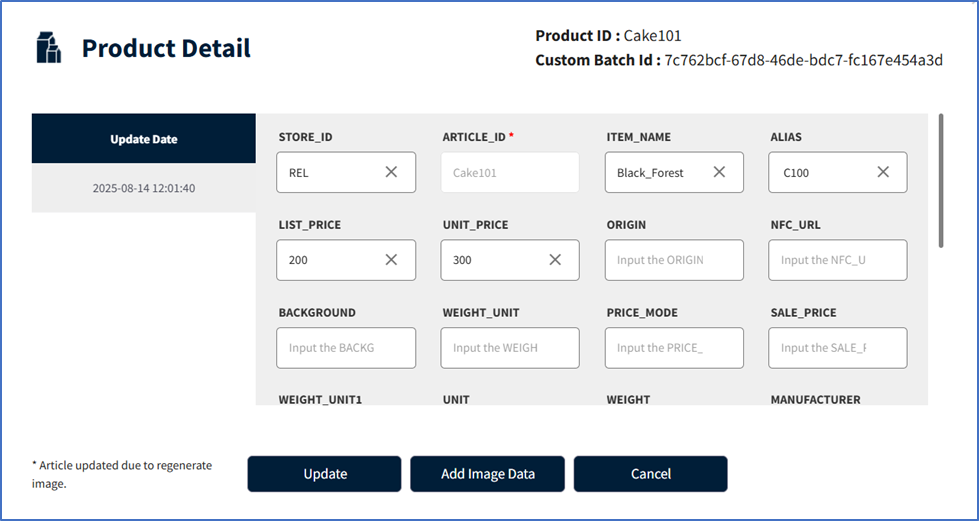
1. Article ID, Name & Store Code Space Trimming
📌 Purpose
Ensure clean, consistent, and accurate data by automatically removing unwanted spaces during product uploads.
🔧 How It Works
The system now automatically removes leading and trailing spaces from:
- 🏷️ Article ID
- 📝 Article Name
- 🏬 Store Code
Applied in all product upload methods:
- ✔️ Normal Product Addition
- ✔️ CSV Upload
- ✔️ JSON API Upload
Trimming happens before:
- ✅ Validation
- ✅ Duplicate Checks
🎯 Benefits
- 🚫 Prevents duplicate entries
- 🔍 Eliminates search mismatches
- 📊 Improves data quality & consistency
⚙️ Configuration
This feature is customer-specific and must be enabled by a Solum Admin.
Field Mapping Configurations
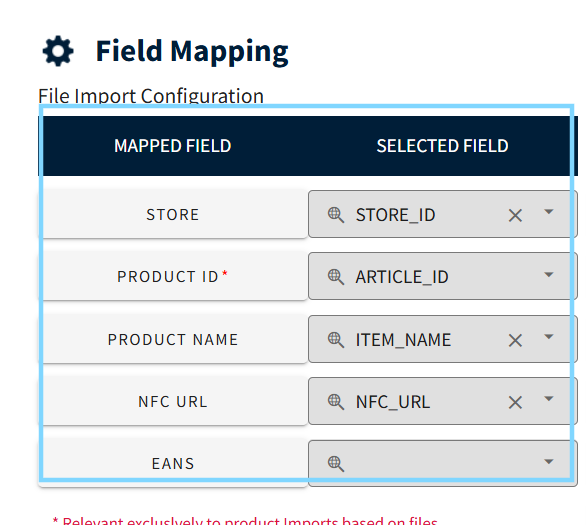
- Before Product Data Trimming: Field Mapping configurations apply raw data.
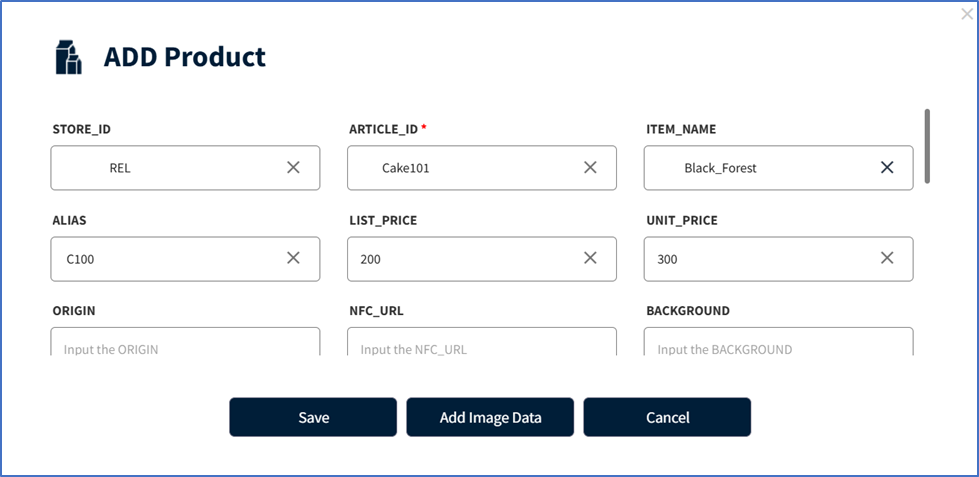
- After Product Data Trimming: Data is trimmed before mapping.
2. Label Scheduling Enhancements Manual
🔍 Overview
Currently, the system supports two scheduling methods:
- Schedule by Label
- Schedule by Product (Article).
Previously, there was no clear identification in the Dashboard to indicate the origin of a label's schedule. To address this, enhancements have been made to both the Dashboard and API responses.
🌐 API Enhancements
The Schedule GET APIs for both Label and Article include two new response keys:
| Key Name | Description |
|---|---|
scheduleType | Indicates the schedule source type: A for Article, L for Label |
scheduleTypeValue | The associated identifier (i.e., Label Code or Article ID) |
Example API Response (Schedule By Label code)
Endpoint: /v2/common/labels/schedule?company=BIBA&store=BIBA1&label=04507B0AC391
{
  "customBatchId": "30019218-1436-42f7-89c1-1bd2daf90e17",
  "scheduleList": [
    {
      "displayPage": 2,
      "startTime": "2025-07-26 00:00",
      "endTime": "2025-07-26 23:59",
      "ledColor": "OFF",
      "scheduleType": "A",
      "scheduleTypeValue": "B100001"
    },
    {
      "displayPage": 1,
      "startTime": "2025-07-25 00:00",
      "endTime": "2025-07-25 23:59",
      "ledColor": "OFF",
      "scheduleType": "A",
      "scheduleTypeValue": "B100001"
    }
  ],
  "zoneId": "Europe/Berlin",
  "state": "",
  "responseCode": "200",
  "responseMessage": "SUCCESS"
}
Example API Response (Schedule By Article)
Endpoint: /v2/common/labels/schedule/article?company=BIBA&store=BIBA1&articleId=B100001
{
  "article": {
    "articleId": "B100001",
    "stationCode": "BIBA1"
  },
  "labelCodes": [
    "002B004F6ED7",
    "04507B0AC391"
  ],
  "scheduleList": [
    {
      "displayPage": 2,
      "startTime": "2025-07-26 00:00",
      "endTime": "2025-07-26 23:59",
      "ledColor": "OFF",
      "scheduleType": "A",
      "scheduleTypeValue": "B100001"
    }
  ],
  "zoneId": "Europe/Berlin"
}
✅ Benefits
- 🎯 Clear Traceability: Know exactly whether a schedule was created from a label or a product.
- 🧩 Improved UI Logic: Enables context-aware display and editing options.
- 🧾 Better Debugging & Reporting: Easily audit and filter based on schedule origin.
Summary
| Feature | Description |
|---|---|
| Schedule Types | By Label (L) or By Article (A) |
| Impacted APIs | Schedule GET APIs (by label / article) |
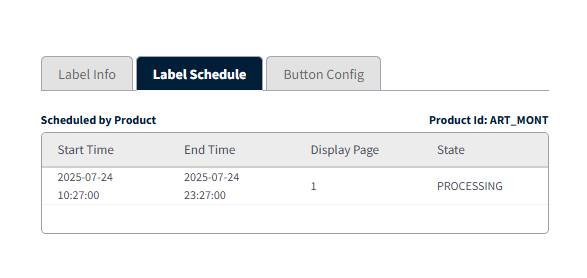
Dashboard Image Refrence
- Schedule by Label
- Schedule by Product
3. Label Status Summary API
Purpose: This endpoint calculates how many labels have the specified status in the most recent X minutes, enabling quick, time-bounded status monitoring.
Endpoint: GET /api/v2/labels/summary/status
Query Parameters
| Parameter | Required | Default | Description |
|---|---|---|---|
company | ✅ Yes | — | Company code |
store | ❌ No | — | Optional Store Code |
status | ❌ No | PROCESSING | Allowed: PROCESSING, TIMEOUT, SUCCESS |
duration | ❌ No | 30 | In minutes: 10 ~ 120 |
Behavior
- If
storeis passed → filter results for that store only. - If not passed → return summary for all stores.
- If
durationnot passed → returns current counts in given status (default last 30 minutes).
📥 Sample Response (With Store)
{
  "labelSummary": [
    {
      "store": "ST01",
      "count": 100
    }
  ]
}
📥 Sample Response (All Stores)
{
  "labelSummary": [
    { "store": "ST01", "count": 100 },
    { "store": "ST02", "count": 124 },
    { "store": "ST03", "count": 546 }
  ]
}
4. Custom Batch ID Extended to Multiple APIs
The Custom Batch ID (cbId) has now been extended to multiple APIs.
- When the query parameter
cbId=yesis included, the system will return thecustomBatchIdin the response. - If the parameter is not passed, the response will not contain it.
🔗 Supported APIs
- 🔄 Unlink API:
POST /v2/common/labels/unlink?company=BIBA&store=BIBA1&cbId=yes - 🗑️ Delete API:
DELETE /v2/common/labels?company=BIBA&store=BIBA1&cbId=yes - 🔗 Link API:
POST /v2/common/labels/link?company=BIBA&store=BIBA1&cbId=yes - 📂 Link File API:
POST /v2/common/labels/link/file?company=BIBA&store=BIBA1&cbId=yes - 🏷️ Schedule by Label API:
POST /v2/common/labels/schedule?company=BIBA&store=BIBA1&cbId=yes - 📦 Schedule by Article API:
POST /v2/common/labels/schedule/article?company=BIBA&store=BIBA1&cbId=yes
✅ Sample Response
{
  "customBatchId": "82e6a286-da0d-475a-a9de-f2e6c3c61f74",
  "responseCode": "200",
  "responseMessage": "SUCCESS"
}
-
Add cbId=yes as a query parameter to receive customBatchId in the response.
-
If cbId is not passed, the response will be without customBatchId.
5. Meeting room solution enhancements
✨ The Meeting Room Solution seamlessly integrates with Microsoft Outlook 365, allowing users to securely access and manage their calendar events directly within our SaaS platform.
🔒 With Microsoft OAuth 2.0 and Graph API integration, users can:
- 📅 View upcoming meetings
- 🕑 Track schedules
- ⚡ Manage events efficiently
🛠️ How It Works
- Admin Setup 🧑💼: The admin must create meeting rooms using their Microsoft ID. Once created, users can view and manage meetings scheduled in that room directly from the SaaS platform.
- Multi-Environment Login 🌍: Users can log in to multiple environments using the same Microsoft account (tenant) and credentials. After logging in, users can map rooms in each environment separately (requires admin access).
- Unique Room Mapping Rule 🚫: If a room is already mapped to Environment A, it cannot be mapped again to Environment B. This ensures uniqueness and prevents conflicts across environments.
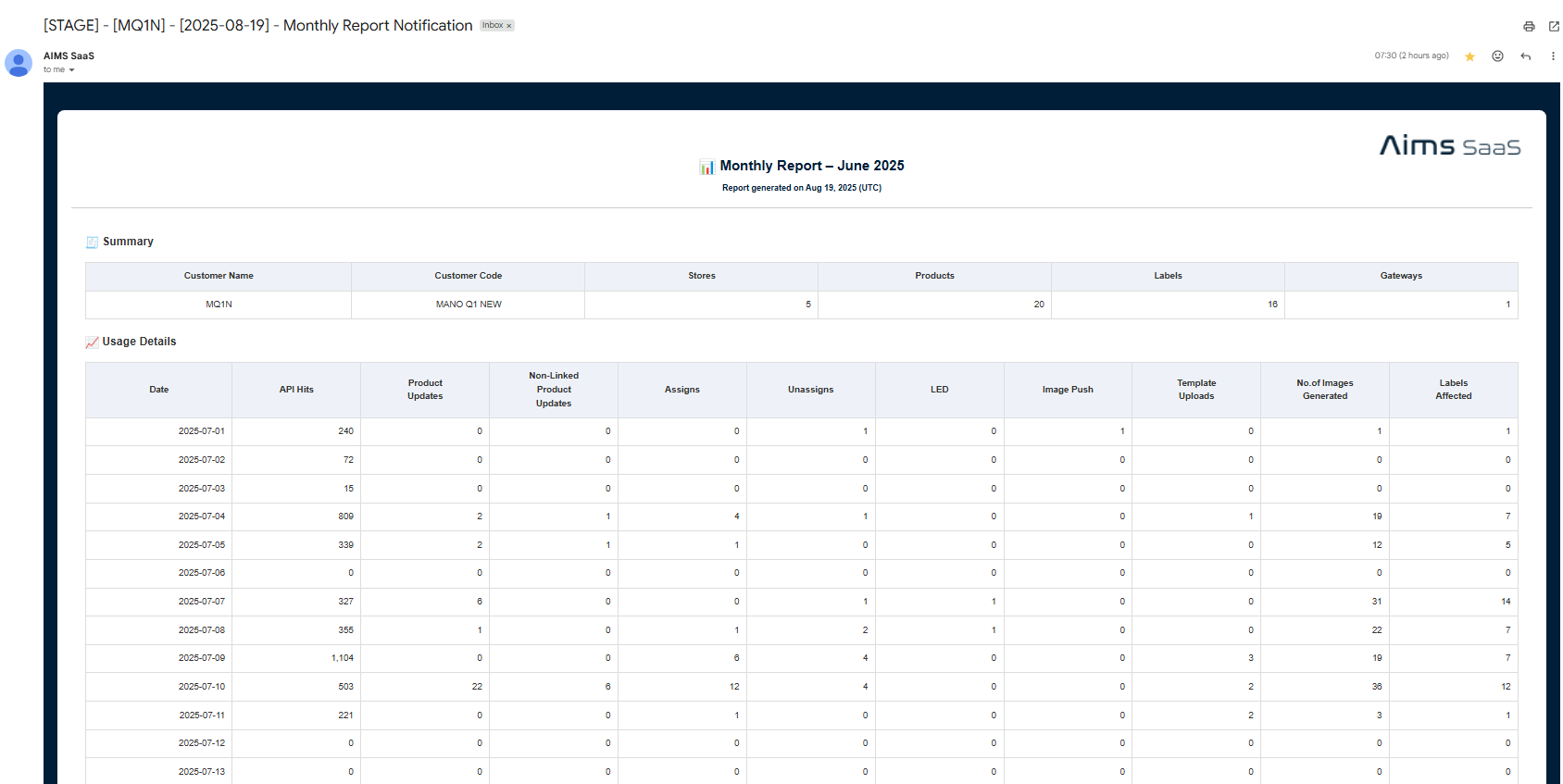
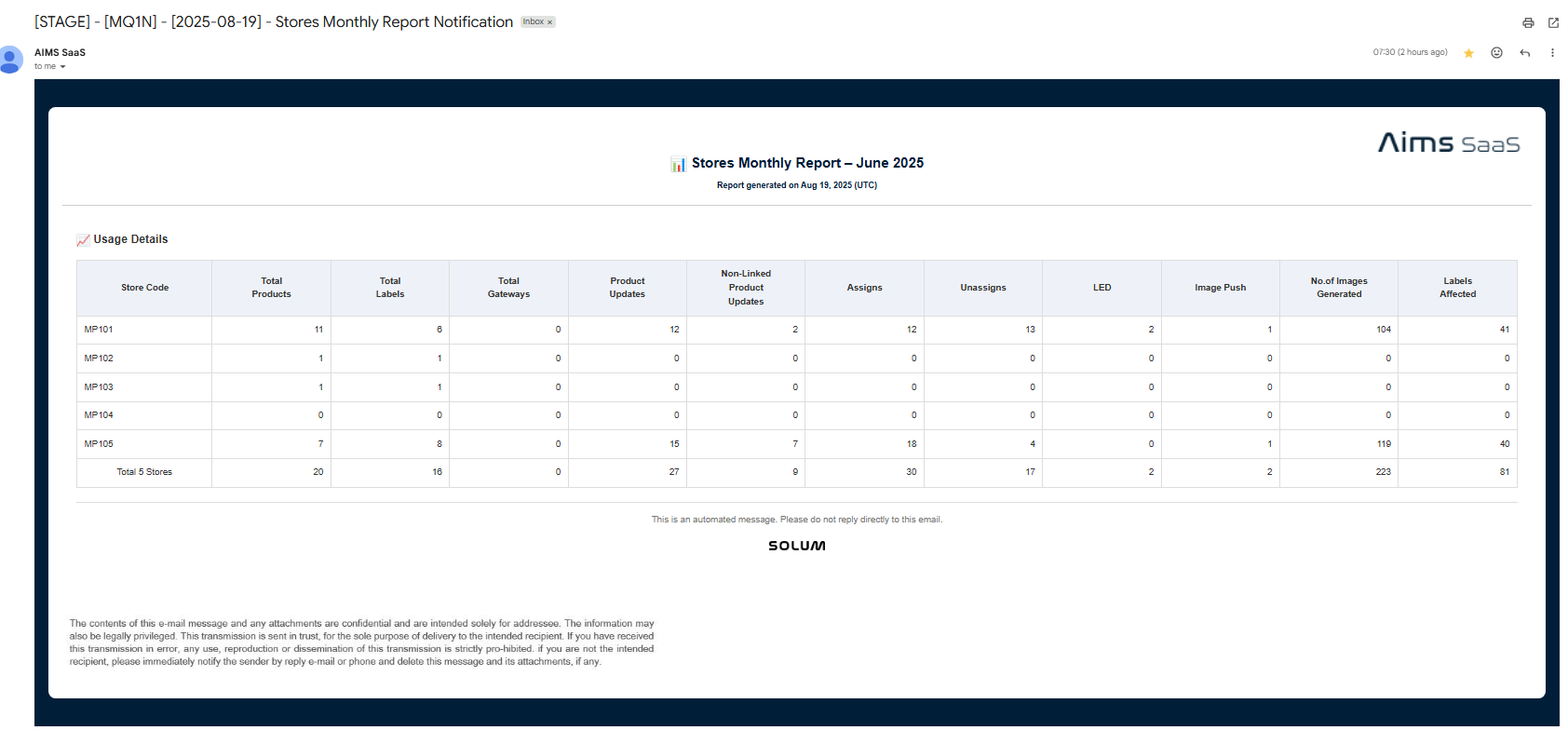
6. Monthly reports
-
Customer-Level Configuration: Monthly reports can be enabled or disabled according to customer preference.
-
Flexible Toggle: Once enabled, reports can be turned on or off at any time via configuration.
-
Automated Scheduling: The scheduler runs on the 2nd day of every month, ensuring timely report generation and delivery.
-
Data Fetching: The system fetches monthly report data for the corresponding customer, including relevant usage metrics (product updates, assigns, etc.).
-
Report Generation & Delivery: A customer-specific monthly report is generated and delivered via email, adhering to user-specific delivery preferences.
-
Report Scope: Monthly reports will be generated for both:
-
Customer Wise Monthly Report
- Store Wise Monthly Report
7. SFTP product file upload
Purpose
SFTP (Secure File Transfer Protocol) provides a secure and reliable method for transferring files between systems. This functionality automatically initiates a scheduler based on the SFTP connection details to monitor, retrieve, and process product info files.
Feature Enable: Please contact SoluM to enable this feature.
Step 1: Accessing the SFTP Flow
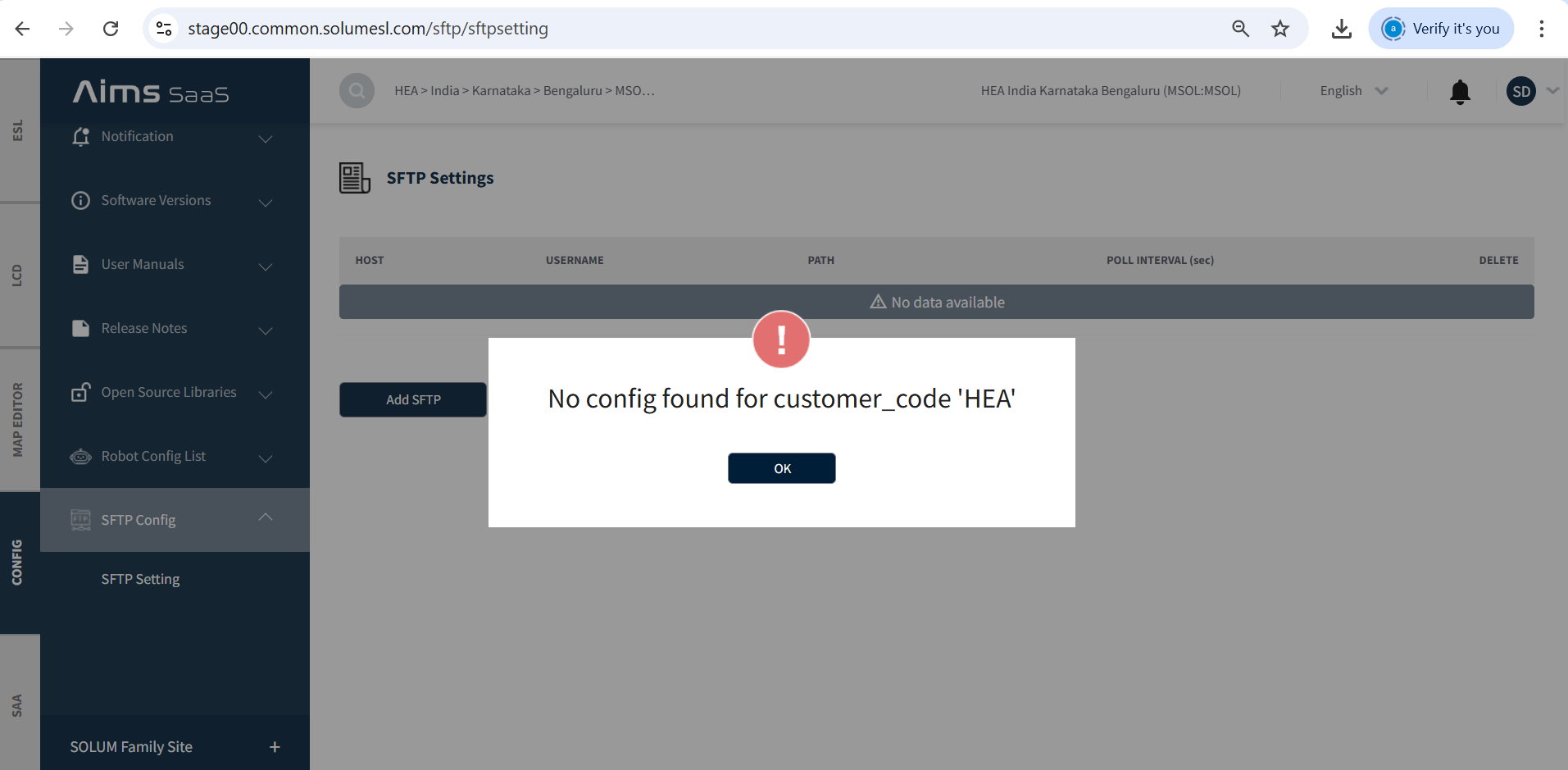
- Go to Config → SFTP Config tab from the dashboard.
- If no SFTP configuration is available for the specified
customer_code, a caution message will appear. - Click “OK” to proceed.
Step 2: Adding SFTP Server Configuration
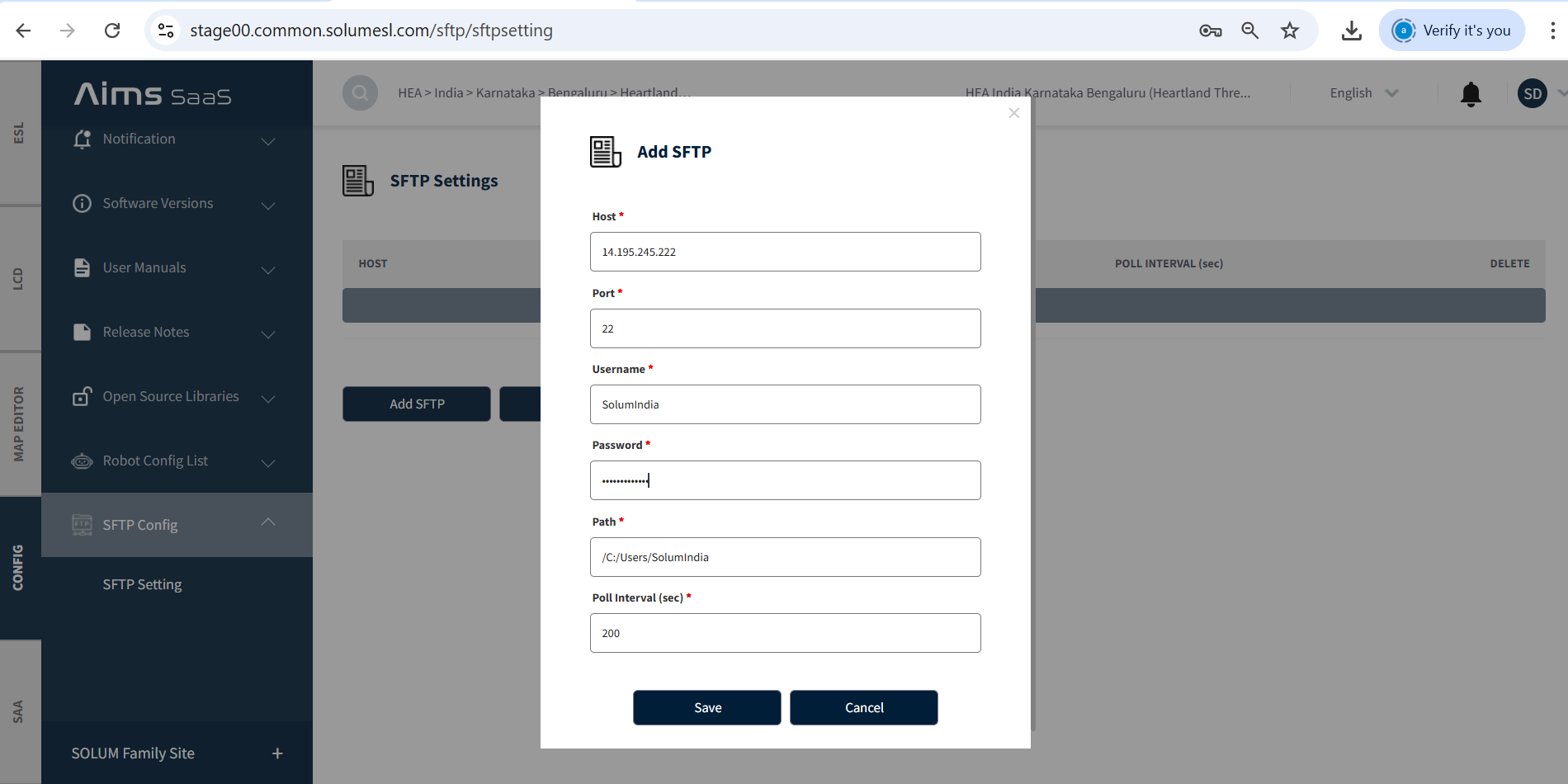
- Click on the "Add SFTP" button to provide the SFTP server details:
- Host, Port, Username, Password, Remote path, Poll interval.
- Click “Save”. A scheduler is automatically created to connect, retrieve, and forward files.
Step 3: Editing SFTP Server Details
- Click on the desired SFTP configuration row.
- Modify the required fields in the popup and click “Update”. The previous scheduler is removed and a new one is created.
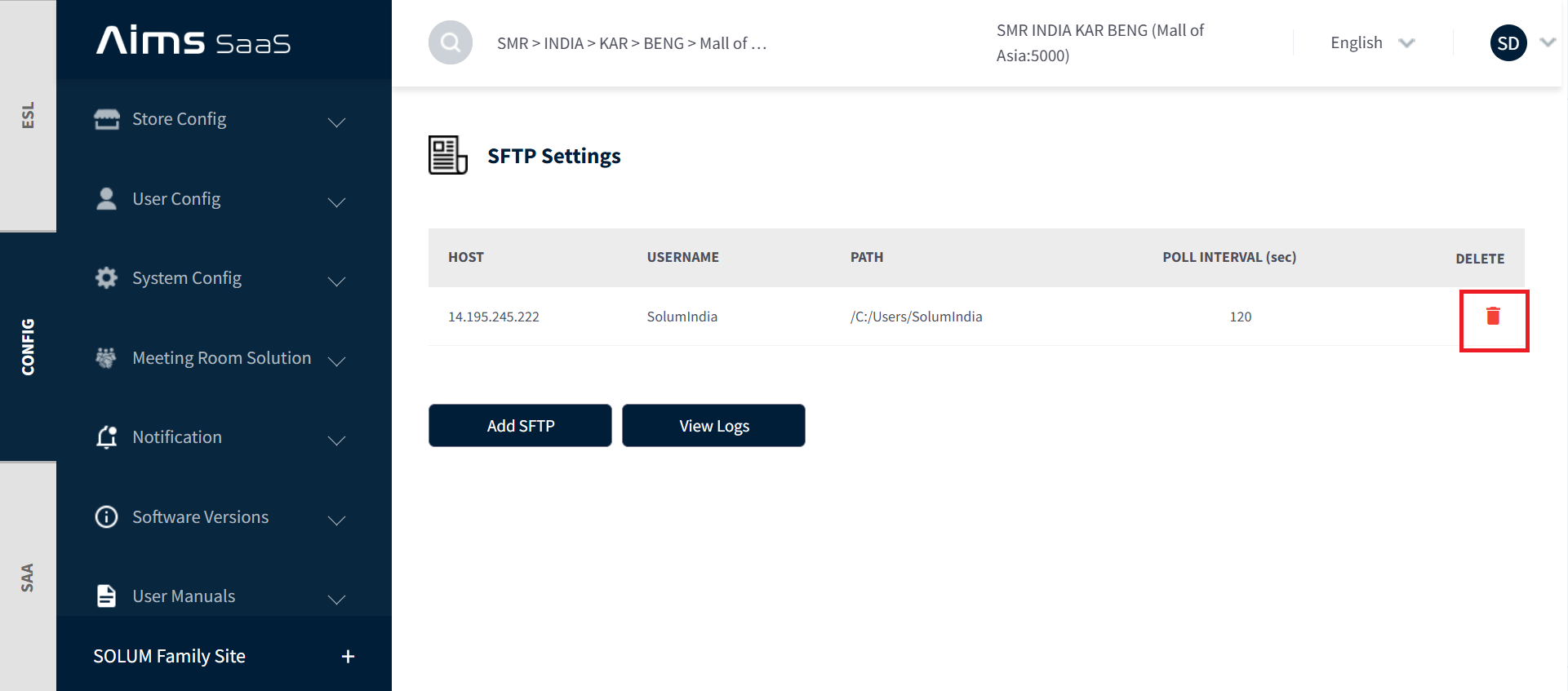
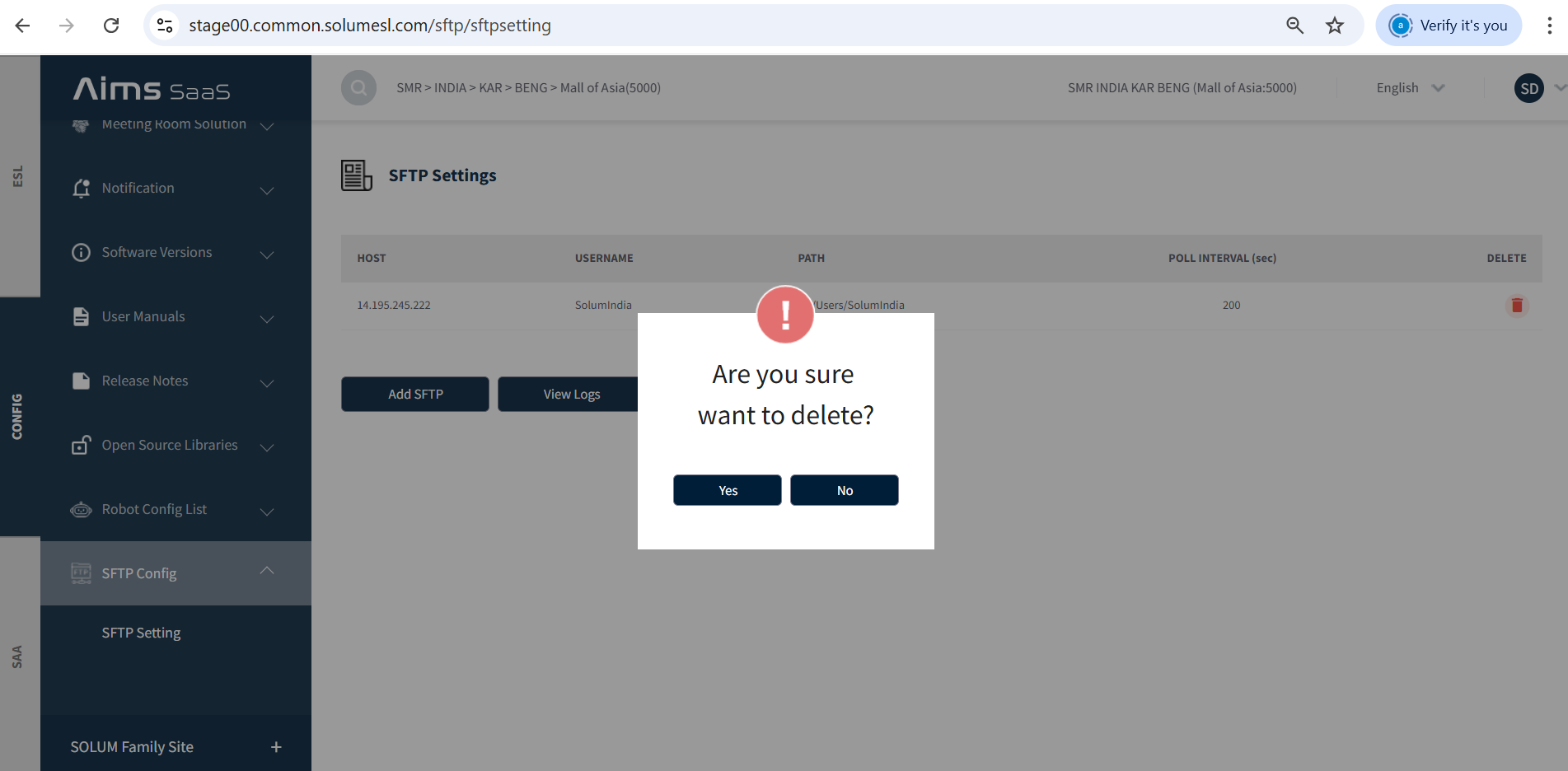
Step 4: Deleting SFTP Configuration
- Click the “Delete” button on the corresponding configuration row.
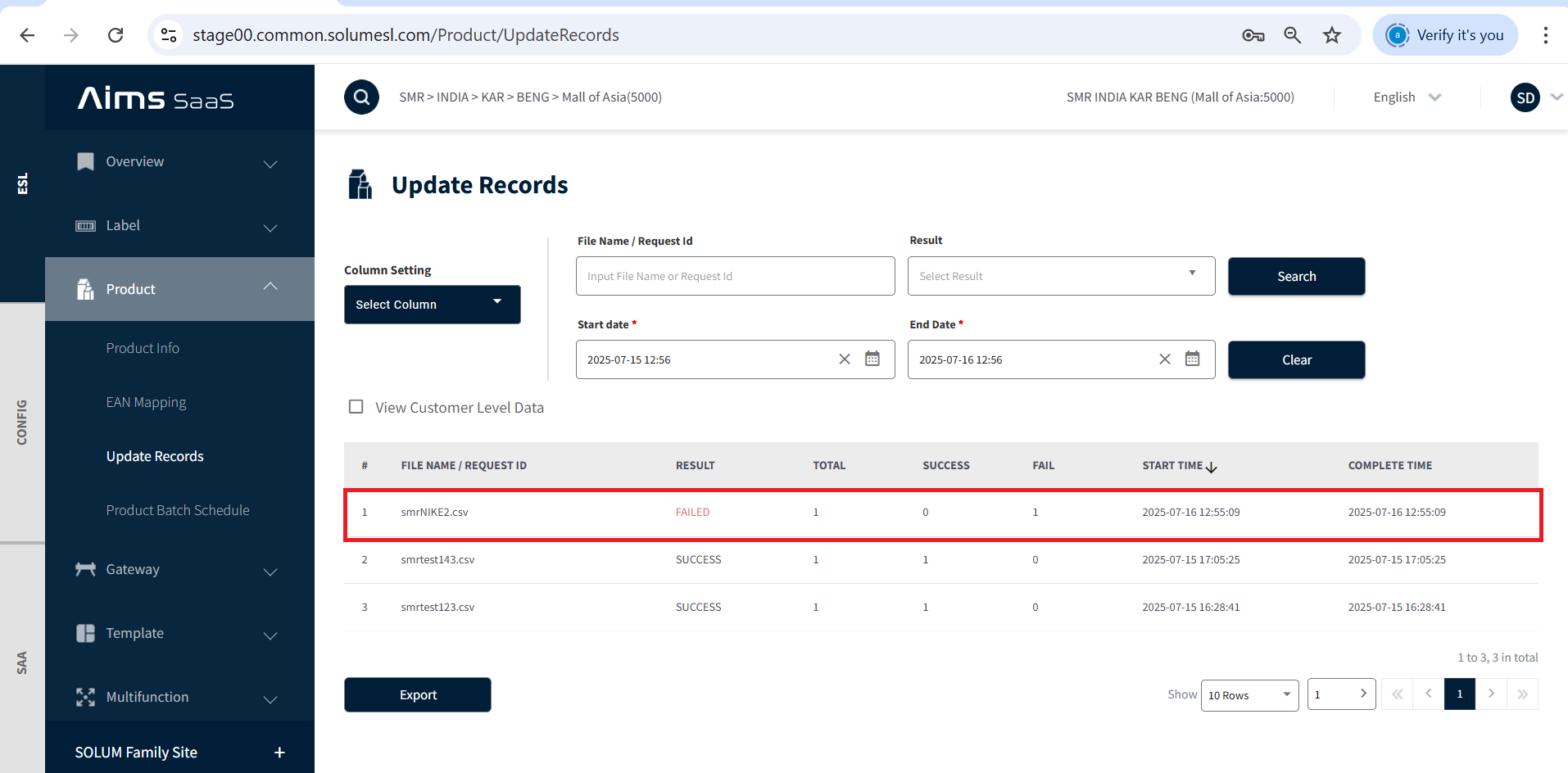
Step 5: Verifying Sent Files in Product Update Records
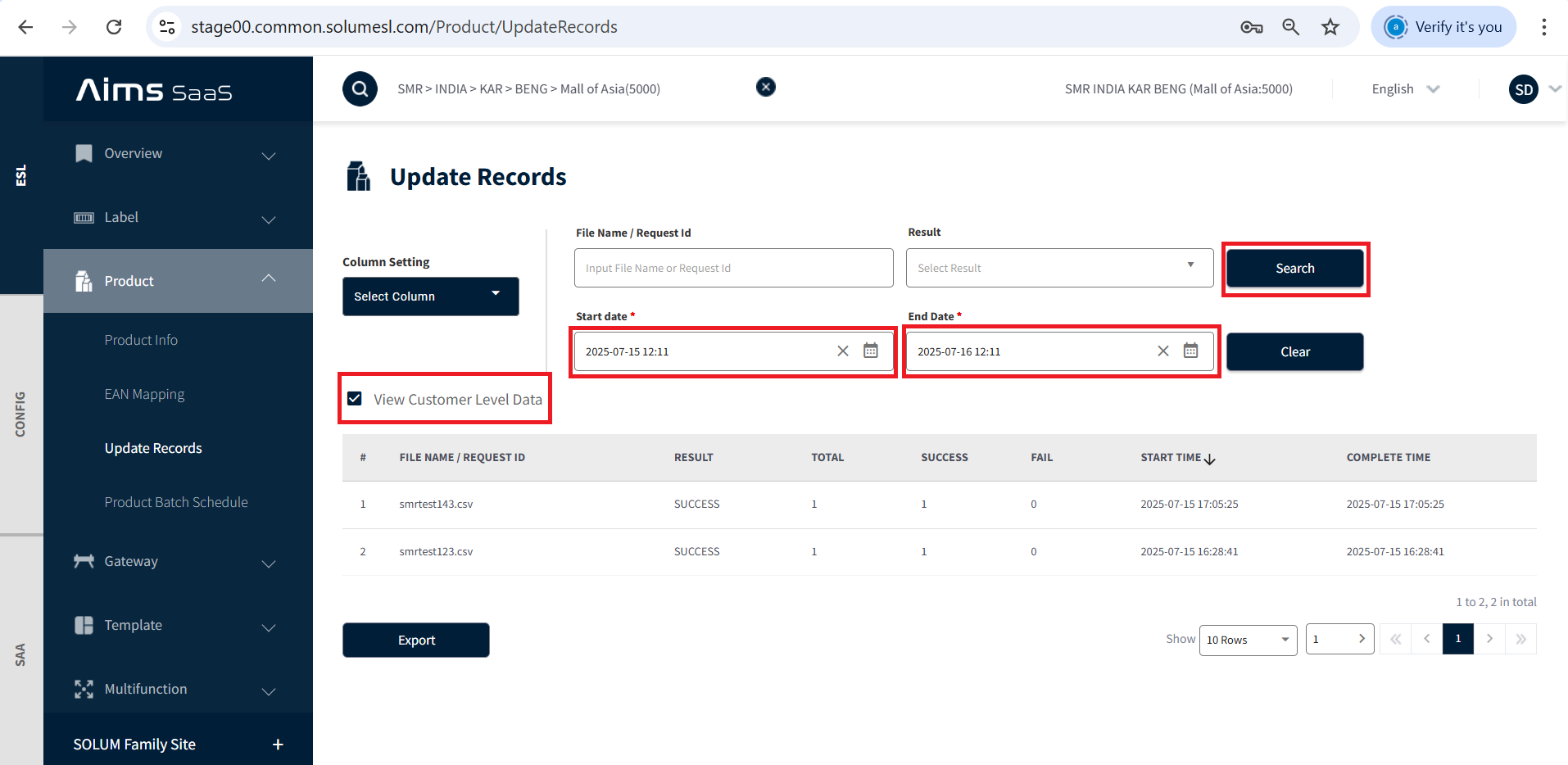
- Go to ESL → Product → Update Records.
- Select the desired date range and click “View Customer Data” followed by “Search”.
- The system displays processed files with status (✅ Success / ❌ Failed).
Step 6: Error Handling and Debugging
-
If a file fails during processing or encounters an error:
-
The file will be marked as Failed in the records view.
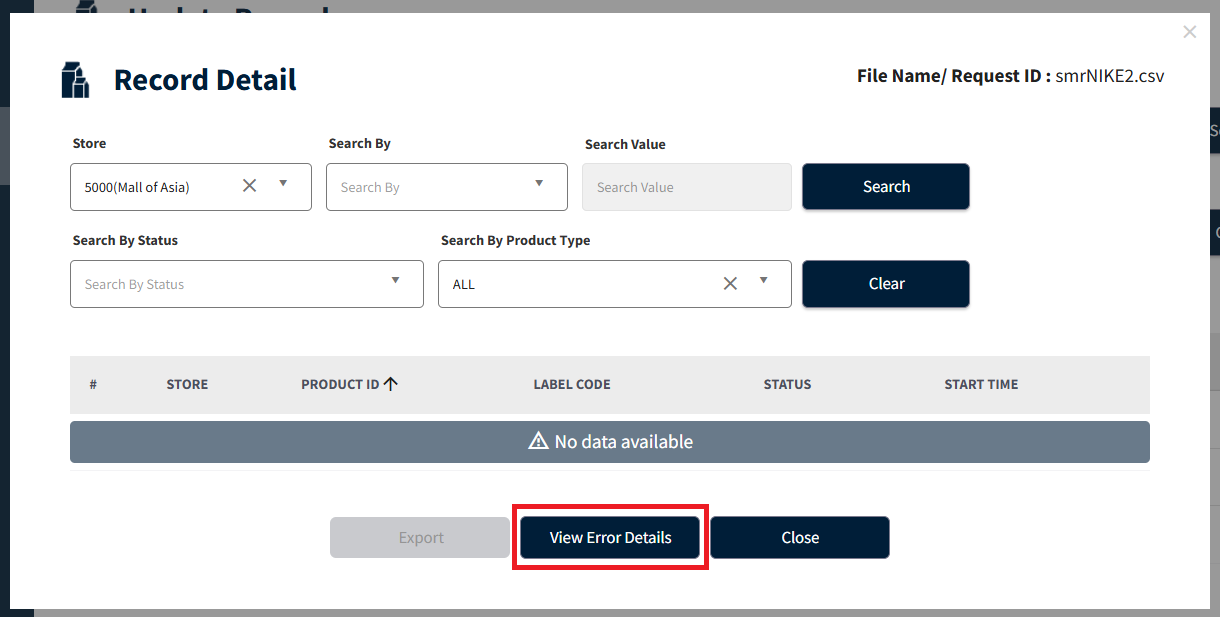
-
Click on the failed file row to open the record details.
-
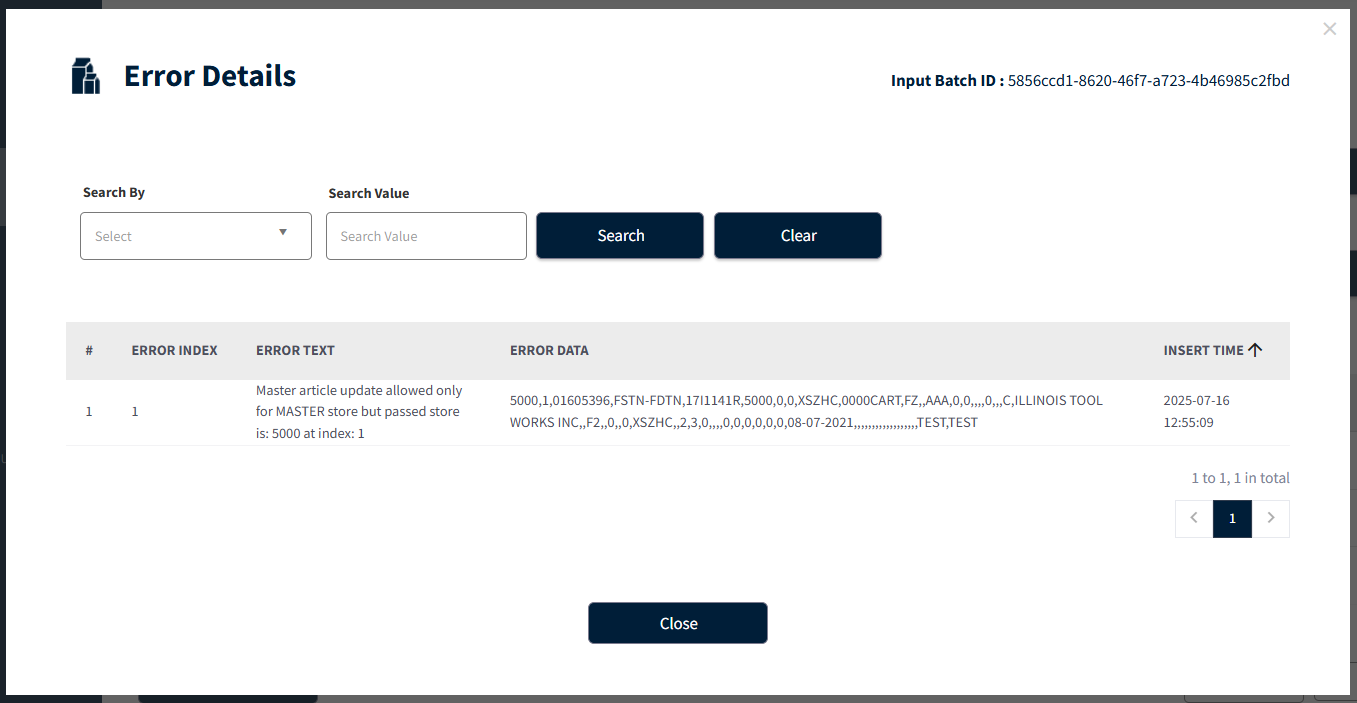
In the detail view, select “View Error Details”.
-
A popup will display the exact error message, helping with diagnosis and resolution.
-
-
This allows users to quickly:
-
Identify failed files
-
Understand the specific error cause
-
Take corrective action before re-processing, if necessary
-
8. Enhancements to article data download API
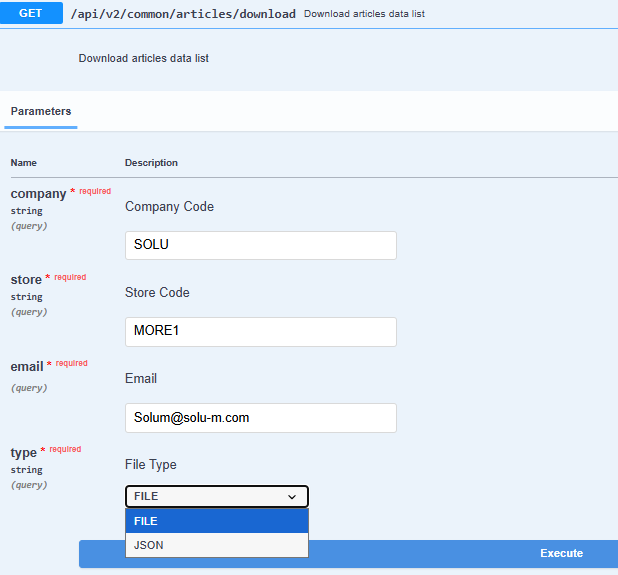
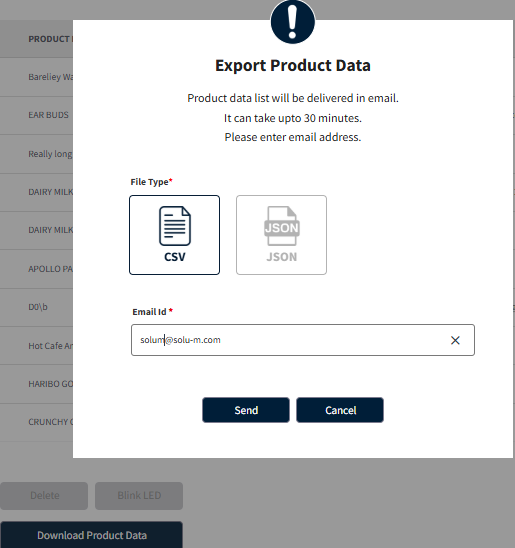
Previously, large product CSV file downloads could fail due to load-related issues. This has been resolved in both the dashboard and the API. Users can now seamlessly export and download product data in both CSV and JSON formats.
API: https://stage00.common.solumesl.com/common/api/v2/common/articles/download
Dashboard
9. Power rail status enhancements
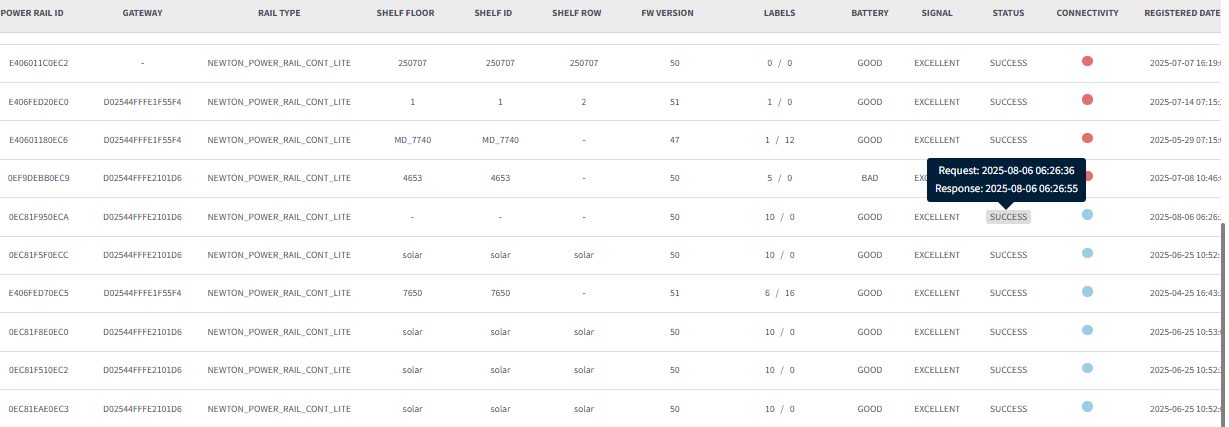
Enhancements have been implemented to ensure power rail status request and response times remain unaffected by gateway reboots or interruptions.
- Interruption Handling: In case of a gateway reboot, the Page 1 activation state is sent to the rail.
- Time Persistence: The request/response time will not reset; it will continue to reflect the original timestamp from when the rail first received activation.
- Error Clean-up: The EPD “unknown error” triggered by rail switch case error status (55) has been removed.
10. NFC URL Enhancements
NFC Configuration
-
The SoluM Admin can configure NFC settings from the Functions menu.
-
This function allows setting a default NFC URL to be used when no URL is provided in the product data.
-
If a default NFC URL is configured and the product does not contain its own URL, the system will use the default one.
-
When the label is scanned, the default NFC URL will be applied.
-
This feature appends the labelcode at the end of NFC URL and if no NFC url is passed in the product, it will take the default NFC URL.
NFC URL is provided in the product, passed through label NFC API or default url
-
✅ If nfcChanges = true (enabled):
-
Append the Label ID (e.g.,
labelid=01FCEA85B69D) to the given URL. -
If the URL already contains query parameters (
?), append using&. (Ex:http://www.nfc.com/?cust=data&labelid=01FCEA85B69D) -
If the URL does not contain query parameters, append using
?. (Ex:http://www.solumesl.com/?labelid=01FCEA85B69D) -
❌ If nfcChanges = false (not enabled):
-
Use the NFC URL exactly as provided.
-
Label code will not get appended.

Example : Nfc url set for the label 0B4EBC1274DB is http://www.solumesl.com?labelid=0B4EBC1274DB
11. Gateway Offline Notification Changes
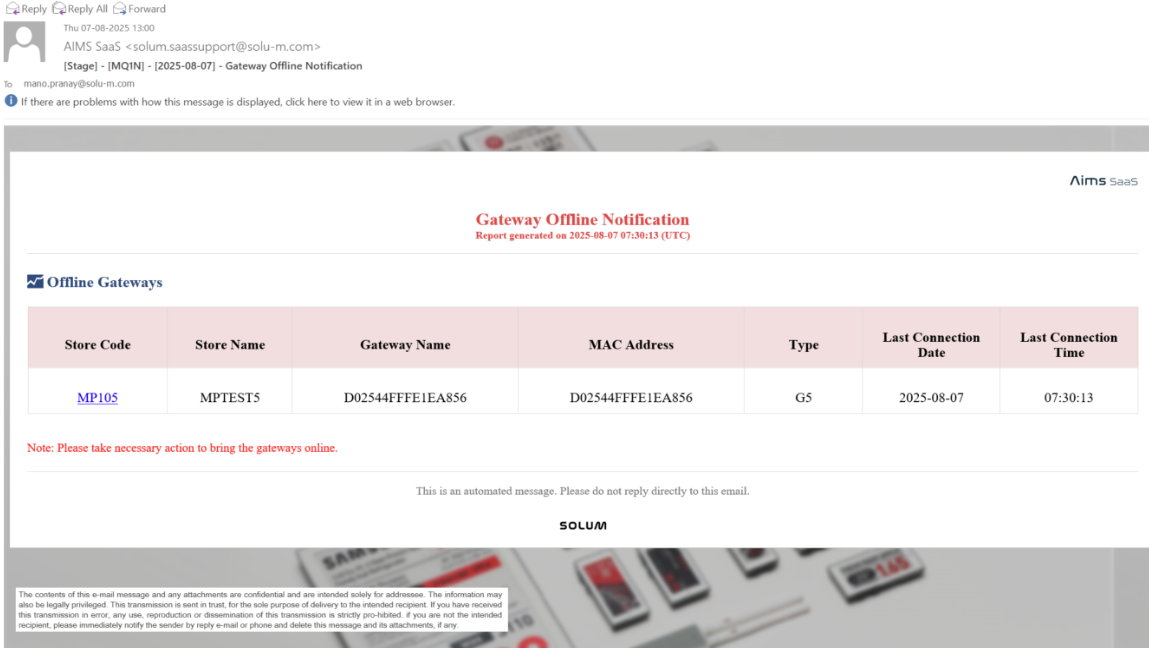
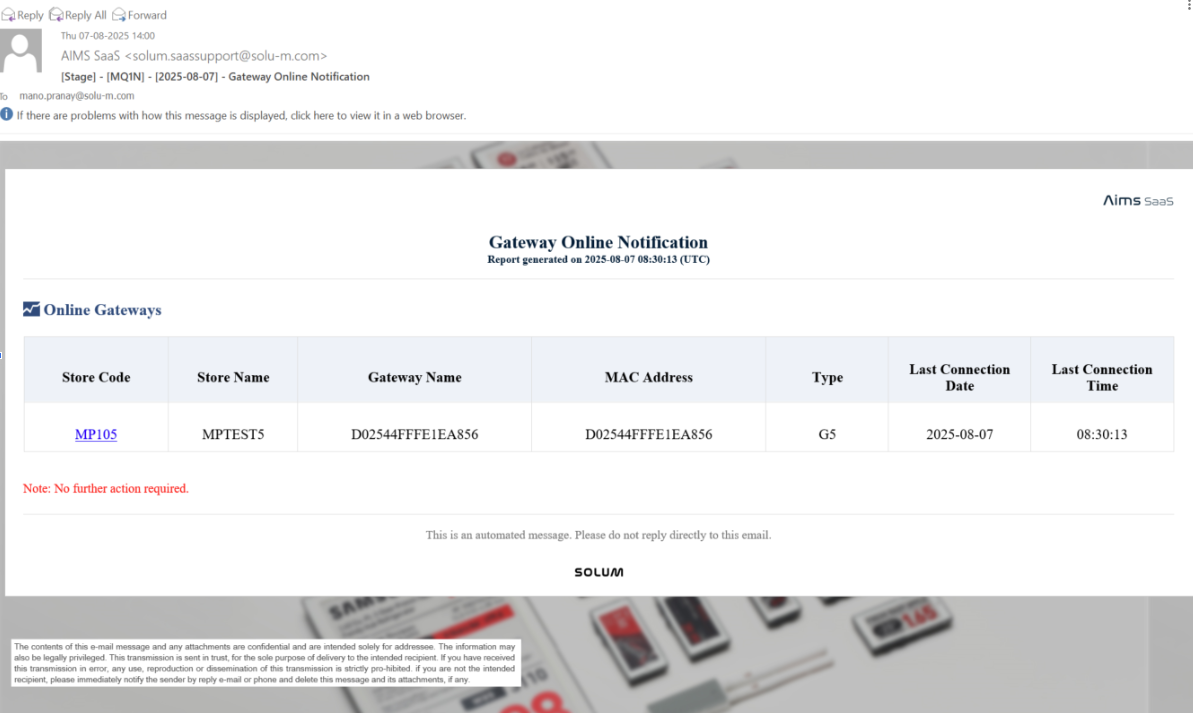
The server continuously monitors gateways for each store every 30 minutes. If a gateway goes offline or if a previously offline gateway recovers, a notification is automatically sent to the mapped users of that store.
Now Notifications are only triggered when there is a change in status (offline or online), ensuring users receive updates that are timely and relevant.
Precondition:
Gateway offline notification must be enabled for the store; otherwise, the process will be skipped.
When a gateway transitions from online to offline, an email will be sent to the registered user with the last connection date and time, along with a note to take the necessary action.
Similarly, when the gateway comes back online, an email will be sent to the registered user with a note stating: No further action required.
12. Whitelist enhancements
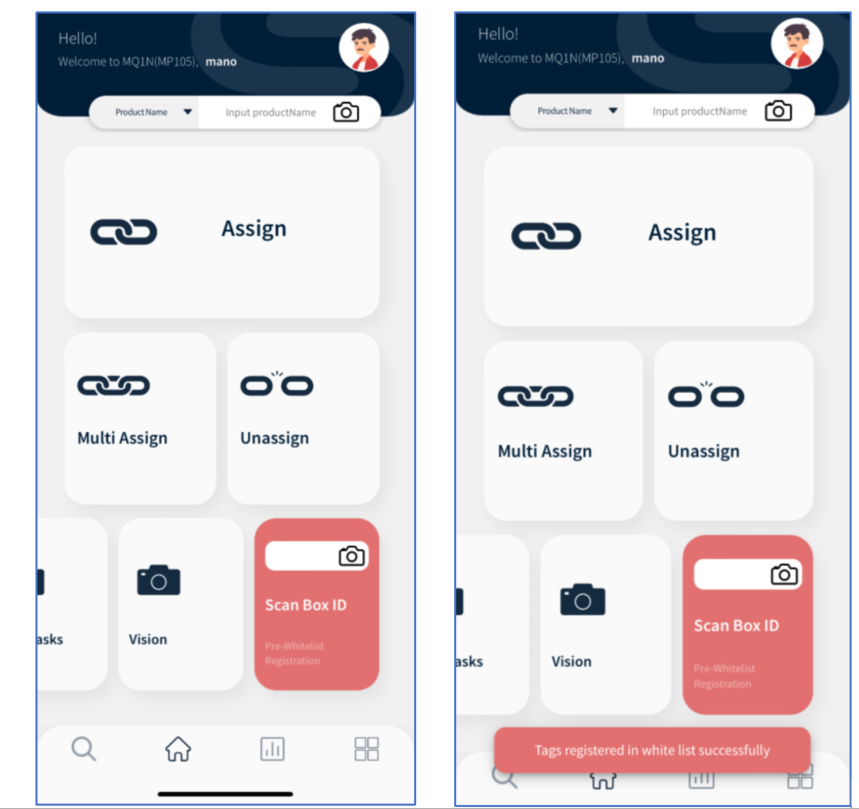
- This feature allows store installers to quickly register all labels in a box to the whitelist by scanning or entering a Box ID or LOT number, in order to avoid activation delays later during installation.
It is supported in the SaaS AIMS Manager mobile application, and the whitelist function should be enabled for the company and store level.
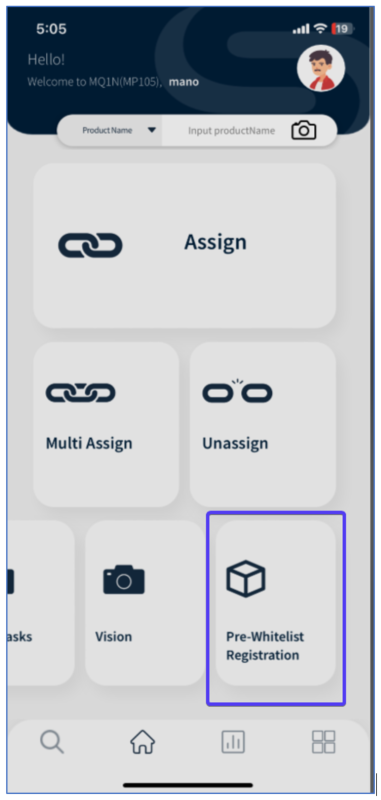
- The user should enter or scan the Box ID or LOT number. Once scanned, a confirmation message will be displayed, and the corresponding labels will be added to the whitelist table.