v25.03 (February 2025)
1. Long Button Press Support
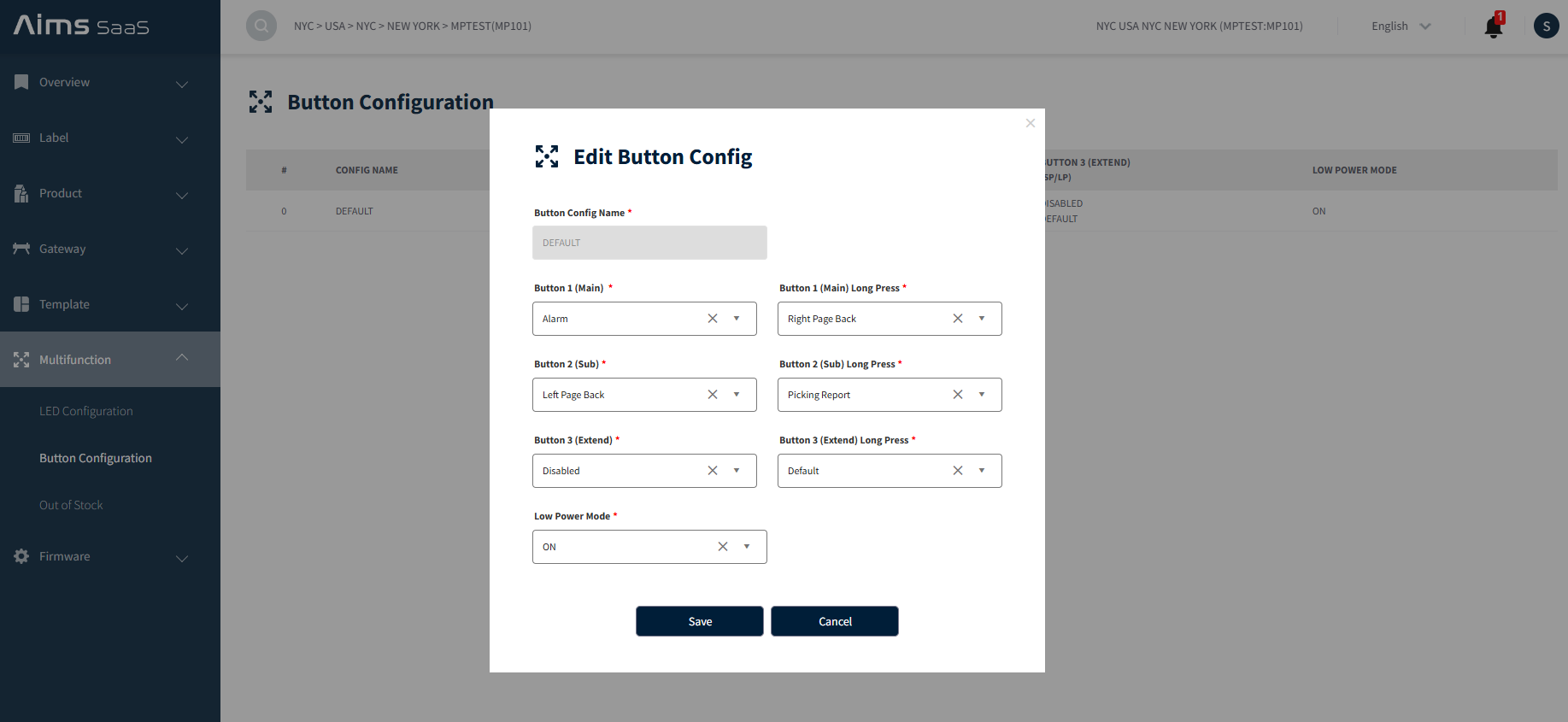
ESL → Multi function → Button configuration page will now support configuring the long-press button actions for the Default button config.
A default button configuration is automatically added. However, users with appropriate permissions (Level one users) can edit default configured actions and save.

If the long press button fields are configured as Default, then actions will be configured as per the factory saved actions.
- Button 1 long press (Default) – Right page Back
- Button 2 long press (Default) – Left page Back
- Button 3 long press (Default) – Disable.
Edit default button configuration: Click on the default button configuration, edit the button actions as needed, and click on the Save button.
Low Power Mode:
- Low Power Mode: ON Label reset can only be performed if low power mode is ON. Long press buttons will be active only if low power mode is ON.
- Low Power Mode: OFF Label reset cannot be performed if low power mode is OFF. Long-press button fields will be disabled and actions will not work on the label.
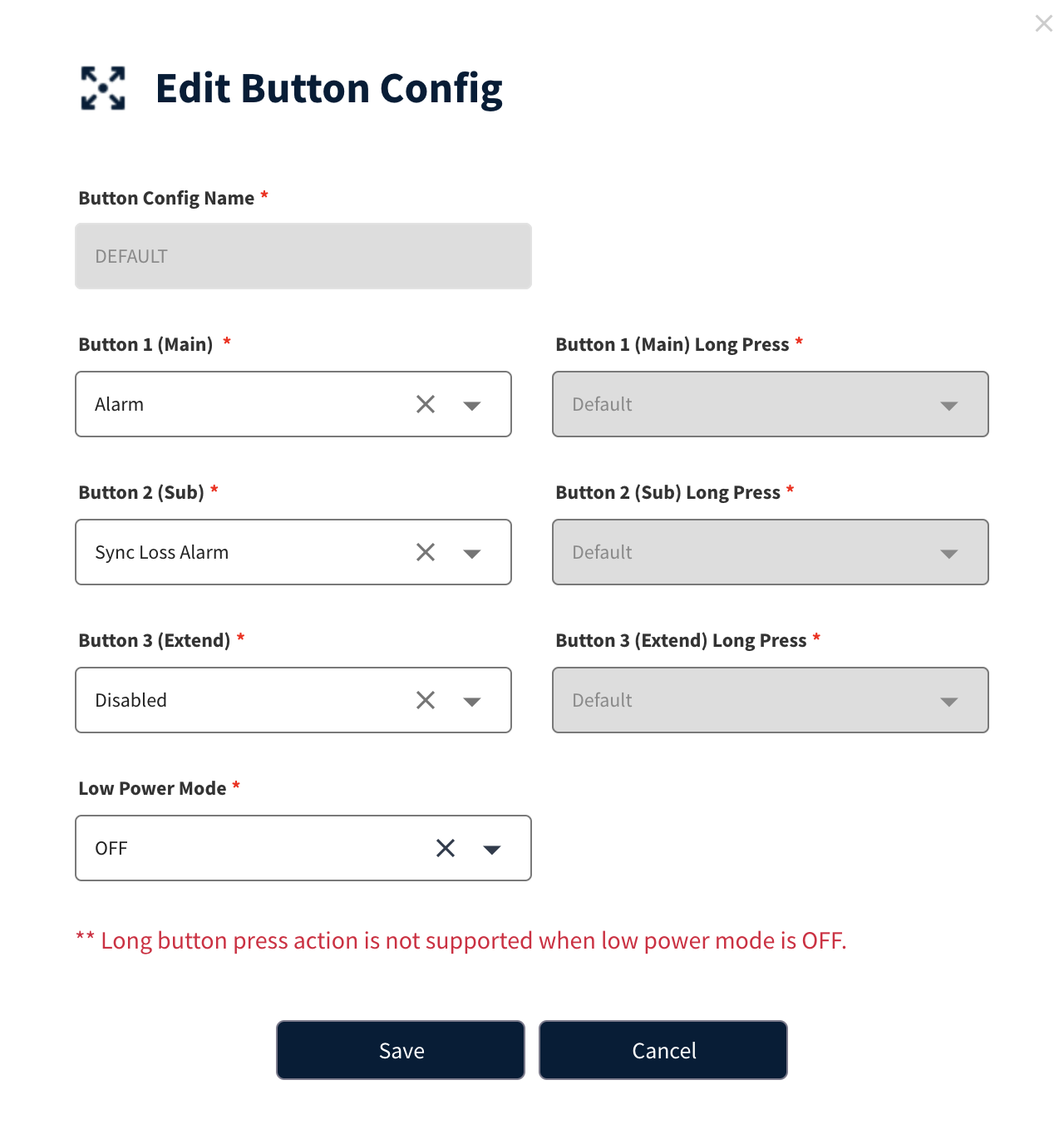
For the assigned labels, if the user wants to update the button configuration then a price update or fresh assign needs to be performed.
2.Newton 7 Segment
Added support for Newton 7 segment display View more details here: [Newton 7 Segment]
3.Dual Side Label Preview UI Changes
-
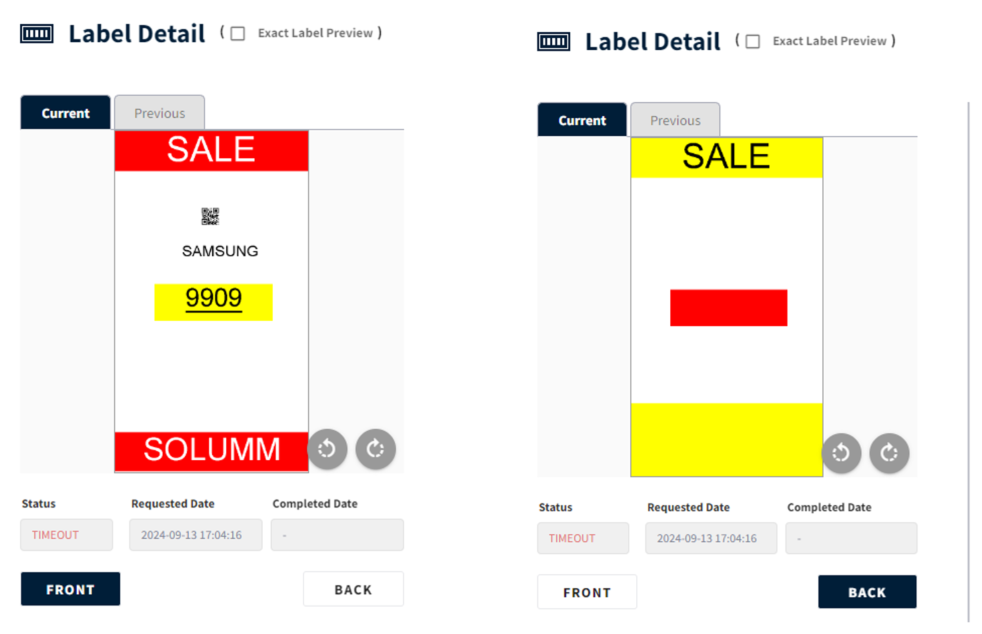
In the label details popup for a dual-sided tag, users can easily preview both sides by clicking the FRONT or BACK button. This feature enhances usability by allowing quick visual comparisons and ensuring all necessary information is readily accessible.
-
UI will differ for dual-sided label detail as shown below.
4. Product Update Indicator
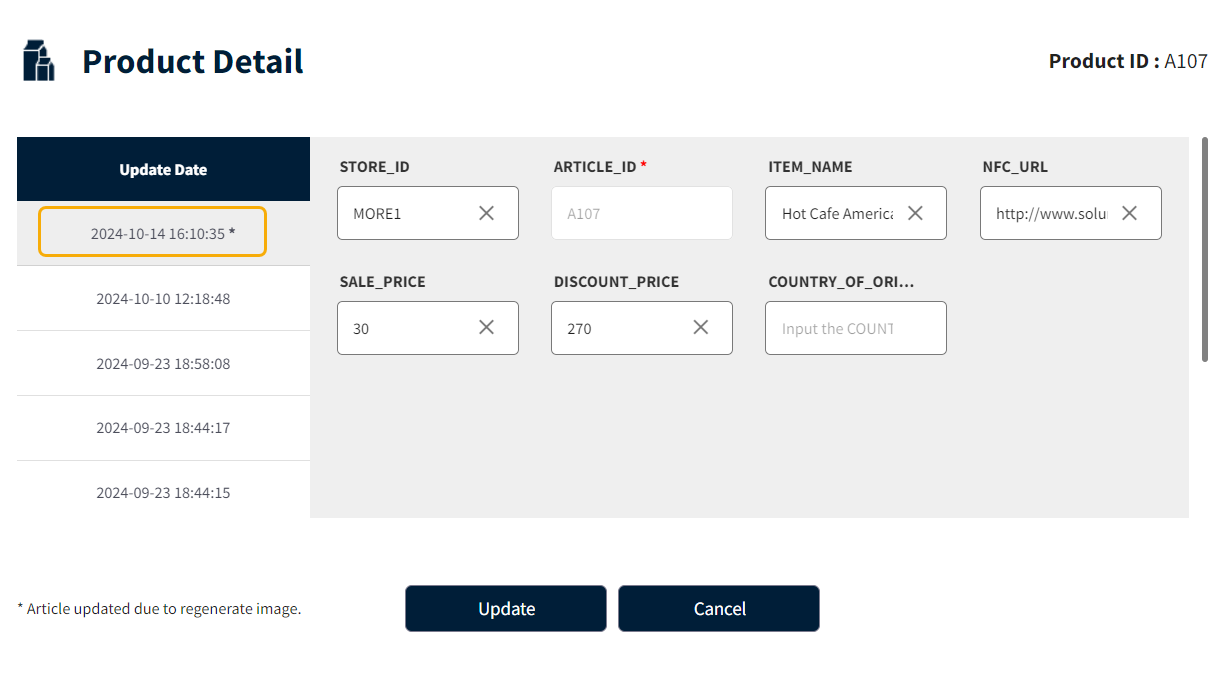
- In the product detail popup within the update date list, an asterisk (*) indicates whether a product update was triggered by image regeneration or a standard update, specifically highlighting when the article was updated due to image regeneration.
5.Webhook Status Management
In the webhook logs, the status change from "1" to a more meaningful string—specifically, "SUCCESS"—reflects an improvement in clarity. Previously, in the ESL Status - Details page, the webhook logs displayed the status as an integer "1" in the PAYLOAD section. This has now been updated to present the status as either "SUCCESS" or "FAILED," enhancing the overall understanding of the webhook's performance.
6. Duplicate Product Assignment
- Previously, assigning multiple articles with the same article within a template was not permitted. When duplicates were attempted, the system would automatically remove them. However, this restriction has now been lifted, allowing for the assignment of duplicate products within a template.
Duplicate product assign can only be done via the API, not from the dashboard or aims manager.
API Endpoint: /api/v2/common/labels/articles/duplicate/link
Method: POST
Request Body:
{
  "assignList": [
    {
      "articleIdList":
      [
        "A108",
        "A108",
        "A108"
      ],
      "labelCode": "04507B0AC391"

    }
  ]
}
Response Body:
{
  "responseCode": "200",
  "responseMessage": "SUCCESS"
}
7. Added support for more ESL label types.
- Support has been added for the following tags: 2.6_6C, 3.5_6C, 4.3_6C.
8. Detailed Error Codes in API Responses
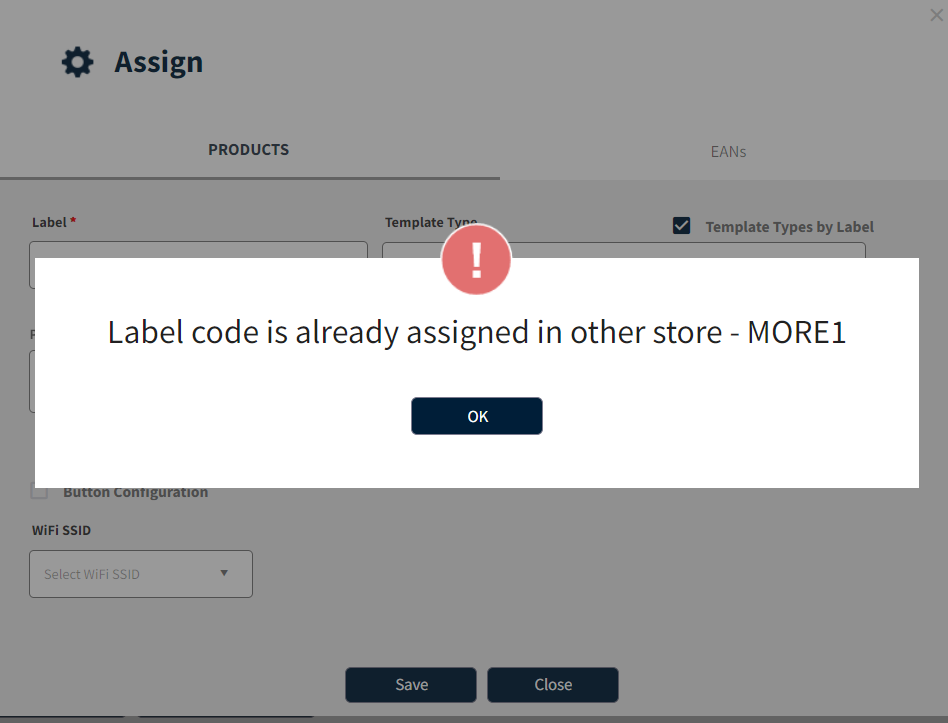
- When attempting to assign a label already linked to another store, the system will now include a specific error code in the response. This code will indicate the conflict, helping users to understand the situation and take appropriate action.
API changes: An errorCode in the response with an HTTP status code of 409 (Conflict) indicates that the label is linked to a different store. This improvement simplifies conflict identification.
Endpoints (v1): `/api/v1/labels/link/multiple /api/v1/labels/link'
Method: POST
Previous Response Example:
{
  "customBatchId": "f5b75647-8b0d-4378-8303-dbabb3e36922",
  "returnCode": "405",
  "returnMsg": "LABEL_CODE_IS_ALREADY_ASSIGNED_IN_OTHER_STORE - 2222"
}
Current Response Example:
{
  "customBatchId": "f5b75647-8b0d-4378-8303-dbabb3e36922",
  "returnCode": "405",
  "returnMsg": "LABEL_CODE_IS_ALREADY_ASSIGNED_IN_OTHER_STORE - 2222",
  "errorCode": "409"
}
Endpoint (v2): /api/v2/common/labels/link
Method:
POST
Previous Response Example:
{
  "responseCode": "405",
  "responseMessage": "LABEL_CODE(29800005B296)_IS_ALREADY_ASSIGNED_IN_OTHER_STORE - 2222"
}
Current Response Example:
{
  "responseCode": "405",
  "responseMessage": "LABEL_CODE(29800005B296)_IS_ALREADY_ASSIGNED_IN_OTHER_STORE - 2222",
  "errorCode": "409"
}
Dashboard changes: When assigning a label that already exists in another store, the system will now display an error message as shown below.
9.Gateway Status Overview
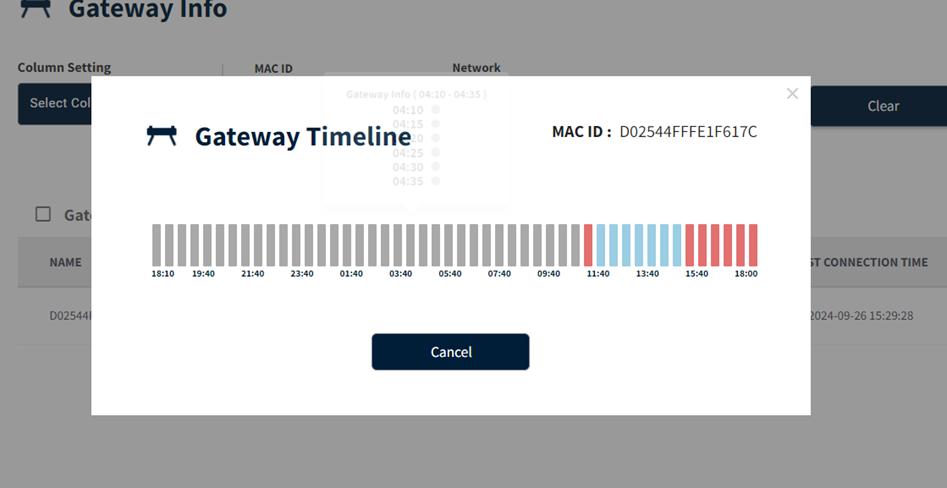
- A visual representation of gateway status provides insights into the periods when the gateway was offline over the past 24 hours. This intuitive display allows for quick identification of downtime, facilitating better monitoring and management of gateway performance.
The grey line represents Gateway not connected.
The red line represents Gateway offline.
The blue line represents Gateway Online.
Where to check gateway timeline status
ESL>Gateway > Gateway Info > History icon
10 NFC Data Changes
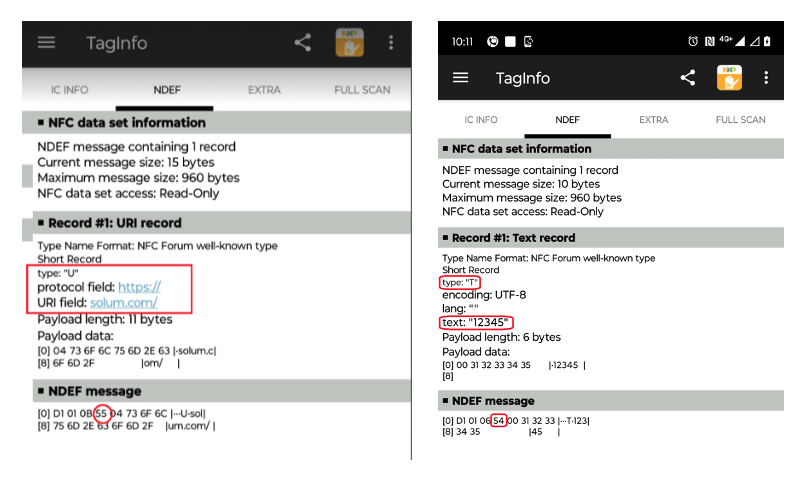
- The system automatically identifies whether the NFC data is a URL or text, facilitating the choice of how the content is stored on the Newton NFC chip. This ensures that the data can be saved as either a URL record for easy access or as plain text, optimizing the functionality and versatility of the NFC chip.
11. Article Deletion Enhancements
- The article deletion process has been improved to send an "unassign" command instead of reassigning remaining labels when a label is linked to multiple articles. Upon deletion of an article, the system will now automatically unlink any labels associated with the deleted articles, ensuring a more efficient and accurate management of label assignments.
12.Viewing all gateways offline across the stores.
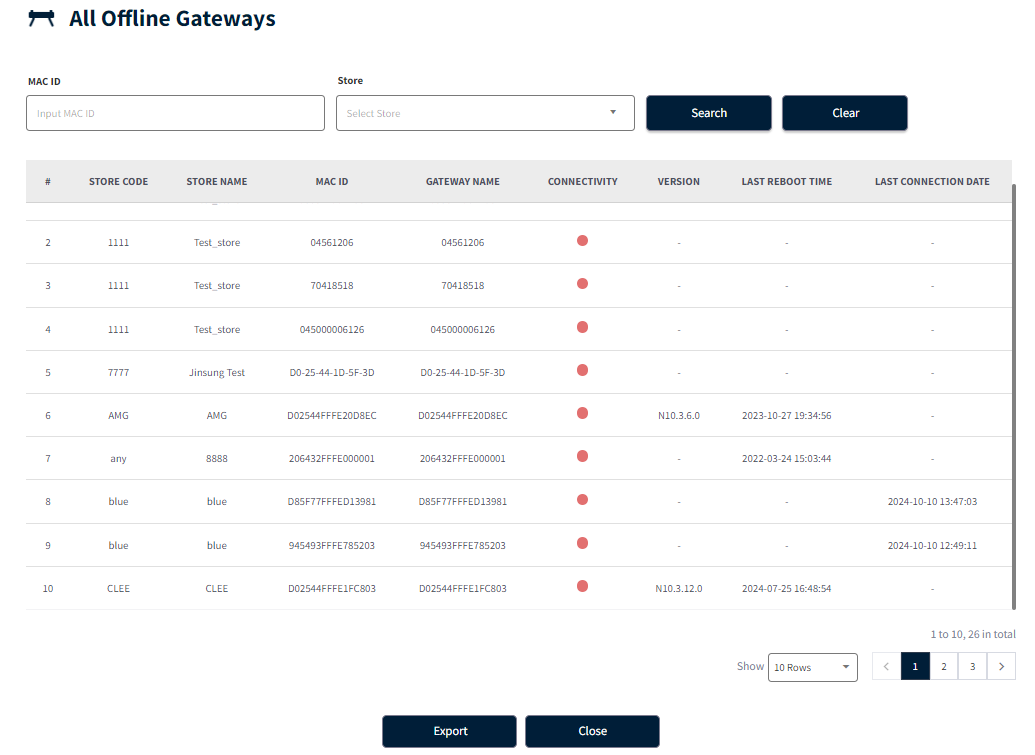
- The status of all gateways currently offline across all stores is now available. This enhanced overview allows for quick identification of issues and streamlines troubleshooting, ensuring seamless operations.
Where to check these offline gateways?
Select a company without stores in the header > Navigate to the overview page > Under Gateway, click on offline gateways > View all offline gateways.
13. Heartland PoS Integration
Integrating the Heartland Point of Sale (PoS) system with the Solu-M system facilitates seamless communication and data exchange between the two platforms. This integration ensures real-time updates on data, which trigger linked labels in the Solum system, enhancing operational efficiency and responsiveness. Reference document link: Heartland PoS
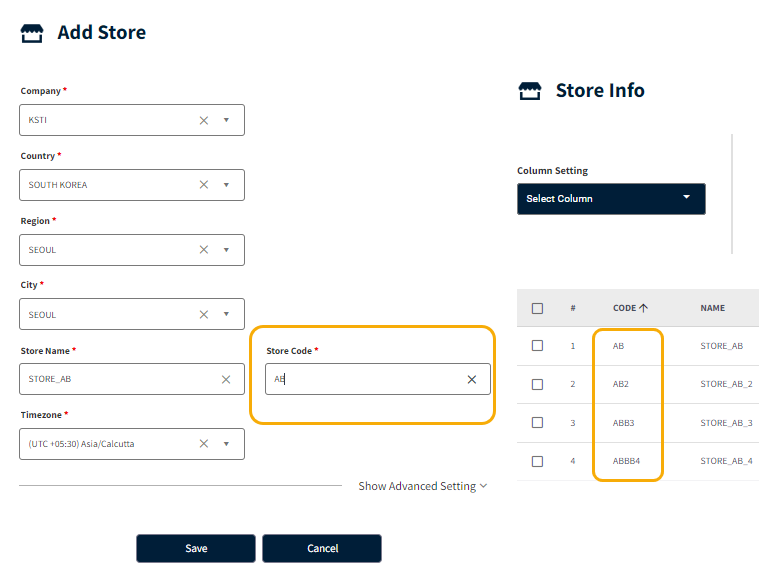
14.Store code Enhancements
- Previously, two-digit store codes were not supported. In this release, we are supporting to create two-digit store codes, with a minimum length of 2 characters and a maximum of 30 characters. Store codes cannot include special characters.
15.Assigned & Unassigned Labels
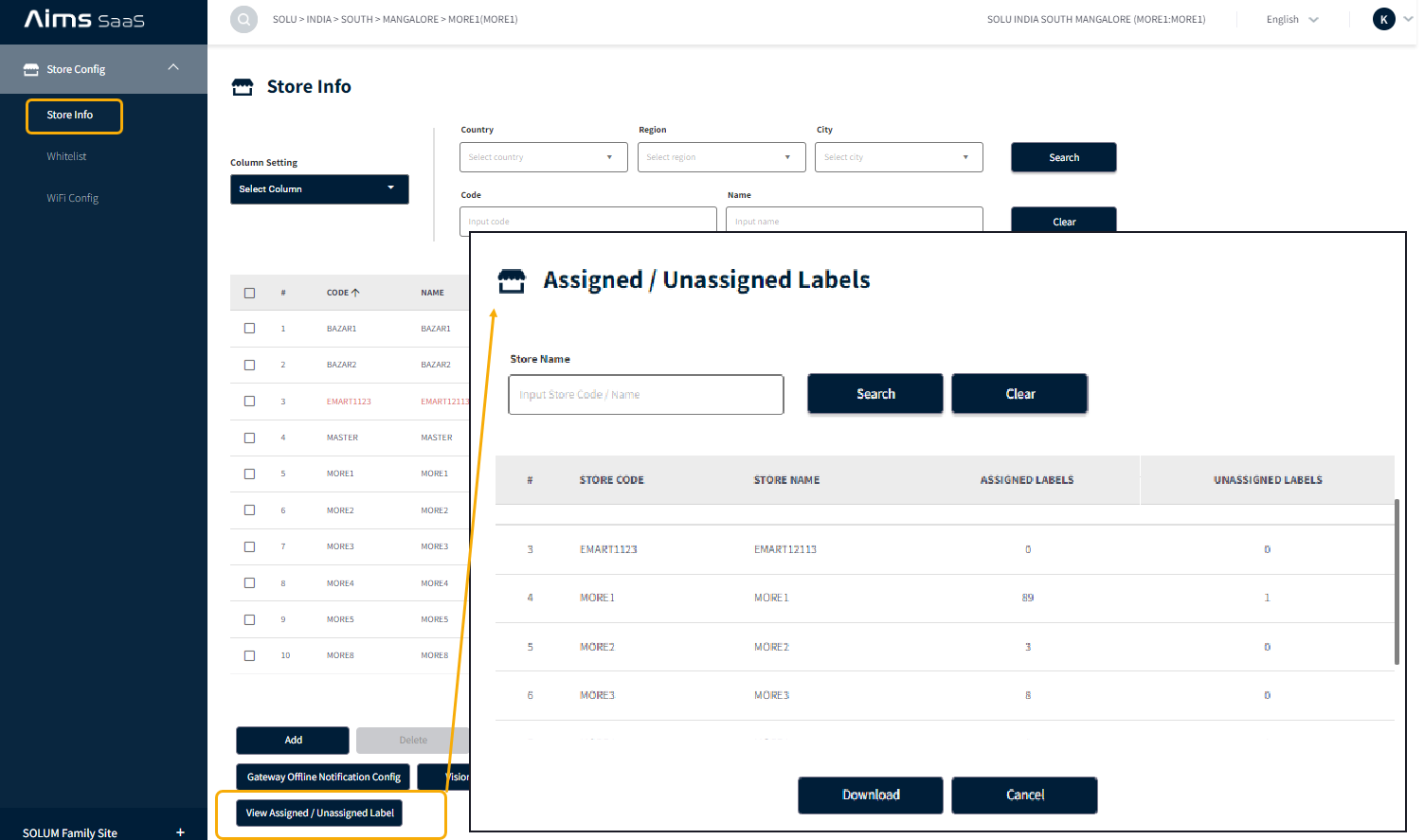
- In the store configuration, we now offer a list that allows user to view & download the assigned and unassigned label counts for the user mapped store. User can download the list by clicking on Download button.
Where to check this Assign & Unassigned Labels
Go to the ESL > CONFIG page > Under Store Info, scroll down to find "View Assigned/Unassigned Labels."
16. Label-Level Button Configuration Rollback.
-
This feature has been rolled back due to technical issues and will be available in upcoming releases.
-
Button configuration remains accessible at the company level.