v25.04.02 (July 2025)
1. Power rail enhancements
Power Rail Auto Registration Steps
Enable Power Rail Functionality (Only accessible by Super Admins):
- Navigate to SAA → Functions. By default, the Power Rail feature is disabled.
- To enable it:
- Turn on the Power Rail feature
- Enable the Power Auto-Registration option
- Go to ESL => Check for the Power rail menu visibility.
- All power rails connected to the store's gateways will be automatically listed under the Power Rail section.
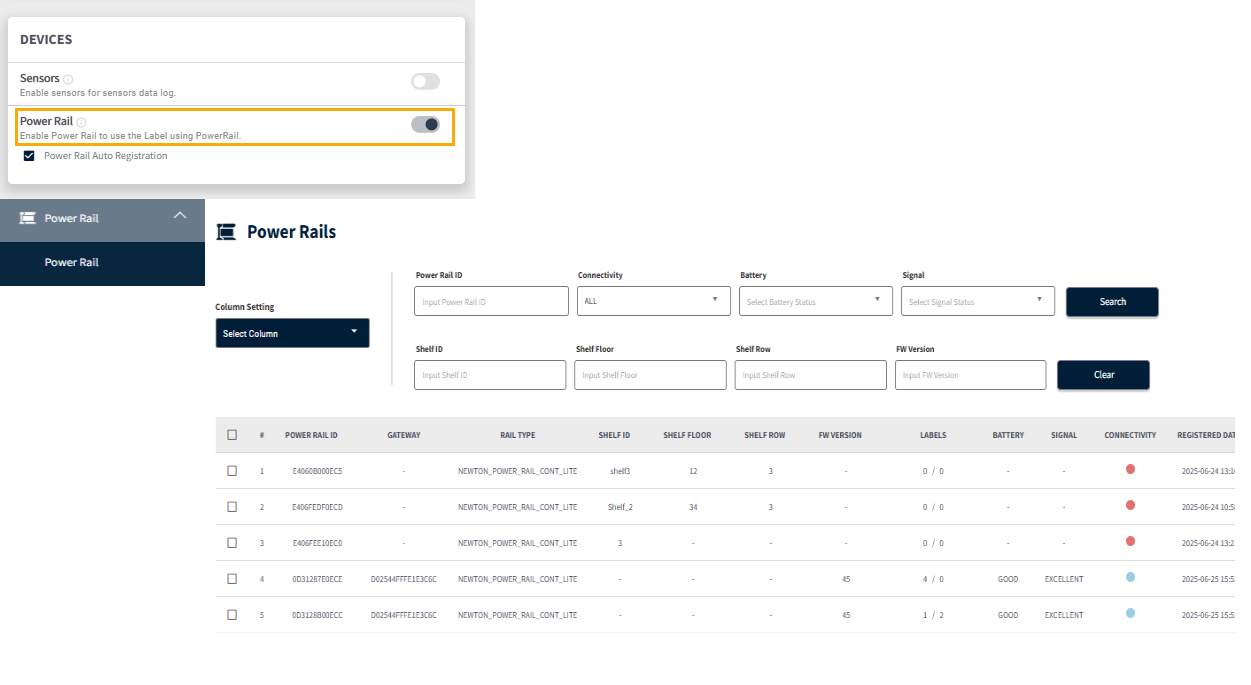
The User can update the shelf information of the power rail controller.
Power Rail Bulk Assign using API
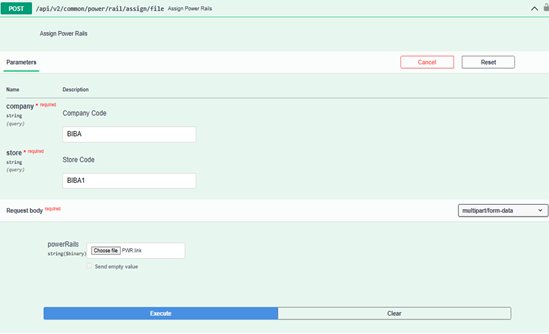
This process allows user to perform a bulk assignment of power rails by preparing a .link file and uploading it through the API endpoint api/v2/common/power/rail/assign/file.
It's designed for large-scale deployments to automate and simplify power rail configuration.
- API Method:
POST - API Request:
/api/v2/common/power/rail/assign/file - Request Body: COMPANY, STORE
- File format:
.link
Sample file: PWR.link
Sample format inside file: ;;;. Only railCode is mandatory. Other fields are optional.
Example Input:
0D3128A30ECE; SHELF-A1;1;3
FF00CE380ECB; ; ;
INVALID_CODE; ; ; <-- will be skipped
Response Body:
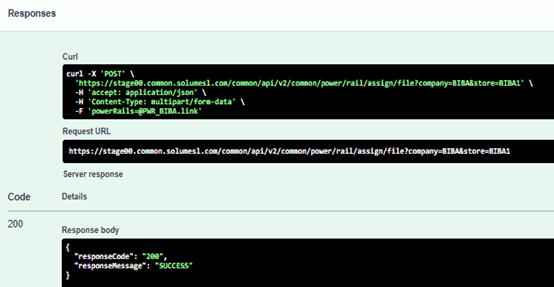
The 'MASTER' store cannot be used as input, as it is considered invalid. Additionally, power rails that are already assigned in other stores cannot be reassigned; attempting to do so will result in an error stating 'Power rail already assigned'.
Users can search Power Rail information by Rail ID, Shelf ID, Shelf Floor, and Shelf Row, with support for case-insensitive and partial matches from the beginning of each field.
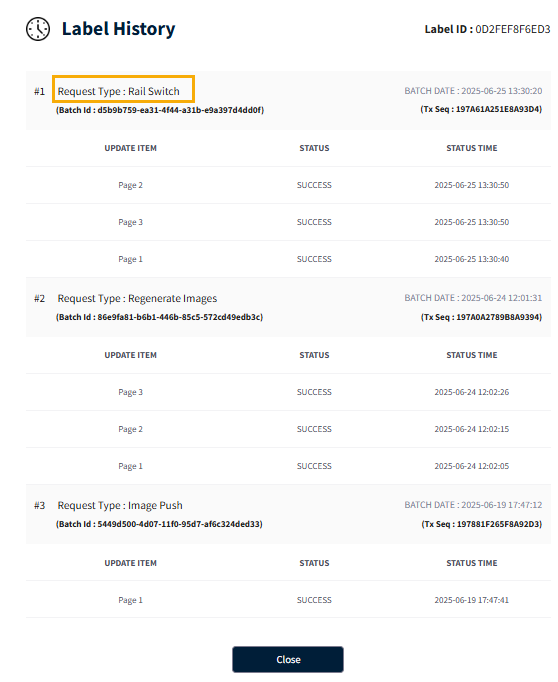
When labels are moved from one controller to another, it is treated as a "switch case" — internally referred to as a "55 error case" of power rail.
- A scheduler for the “Power rail 55 error case” runs every hour. When a power rail is switched (e.g., from RAIL A to RAIL B), the next time the scheduler runs, a "Rail Switch" event will appear on the Label History page.
- However, the image will be transferred to the tag only if the tag is in 'Activation' status. If not, the image update will not take effect.
2. Schedule deletion support by articles
The "Schedule Delete by Article List" functionality allows users to efficiently delete label schedules based on a given list of article IDs.
How It Works:
- The system retrieves all labels linked to the specified article IDs (processed in batches of 500).
- It then deletes the schedules associated with those labels, ensuring a clean removal across the store.
API Details:
- Method:
DELETE - Endpoint:
/api/v2/labels/contents/schedule/by/article/multiple?company=MAST&store=100
Required Parameters:
company– The company codestore– The store IDBody– List of article IDs (typically in JSON array format)
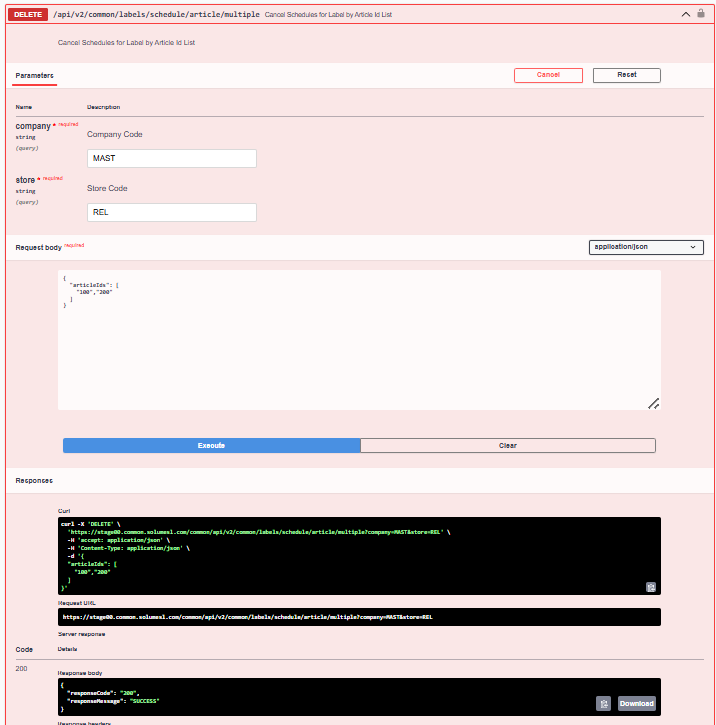
Make sure the article IDs provided are valid and belong to the specified company and store.
3. Custom batch ID support for image push V2 API
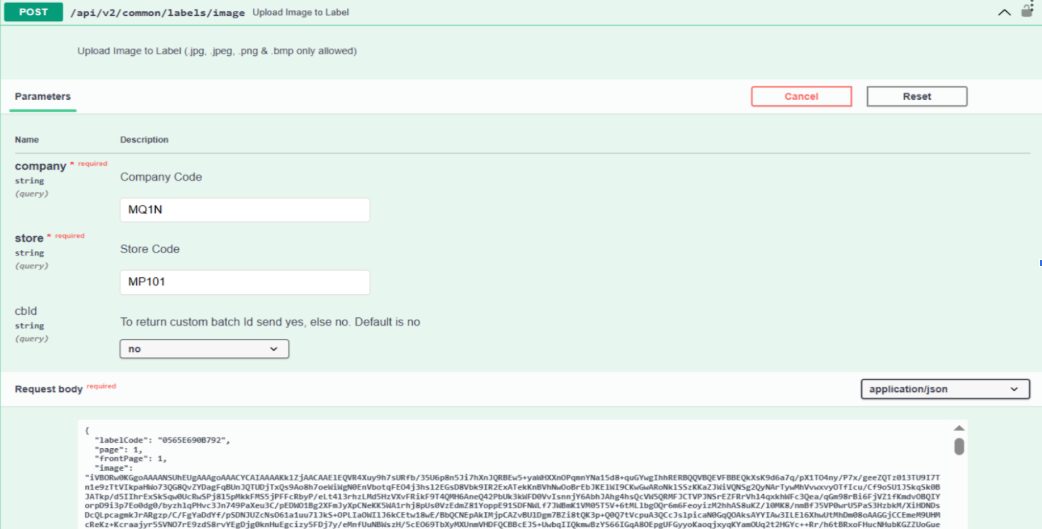
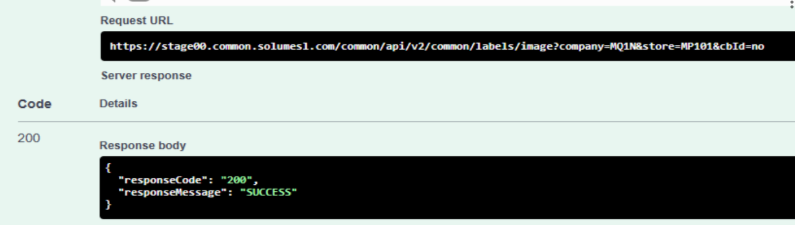
Custom Batch ID added to Image Push API response for better tracking.
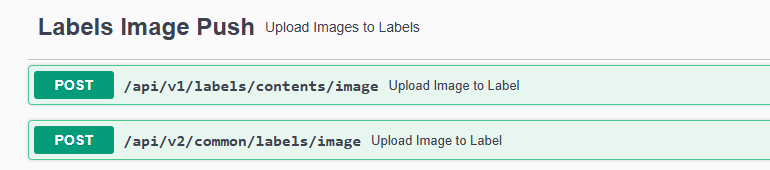
These are the examples below:
V2 API:
{
  "customBatchId": "82e6a286-da0d-475a-a9de-f2e6c3c61f74",
  "responseCode": "200",
  "responseMessage": "SUCCESS"
}
V1 API:
{
  "customBatchId": "82e6a286-da0d-475a-a9de-f2e6c3c61f74",
  "returnCode": "200",
  "returnMsg": "SUCCESS"
}
- If we receive the query parameter
cbId=yesOnly then Custom batch ID will be displayed in response; otherwise, it will not be displayed. - If
cbid = yes
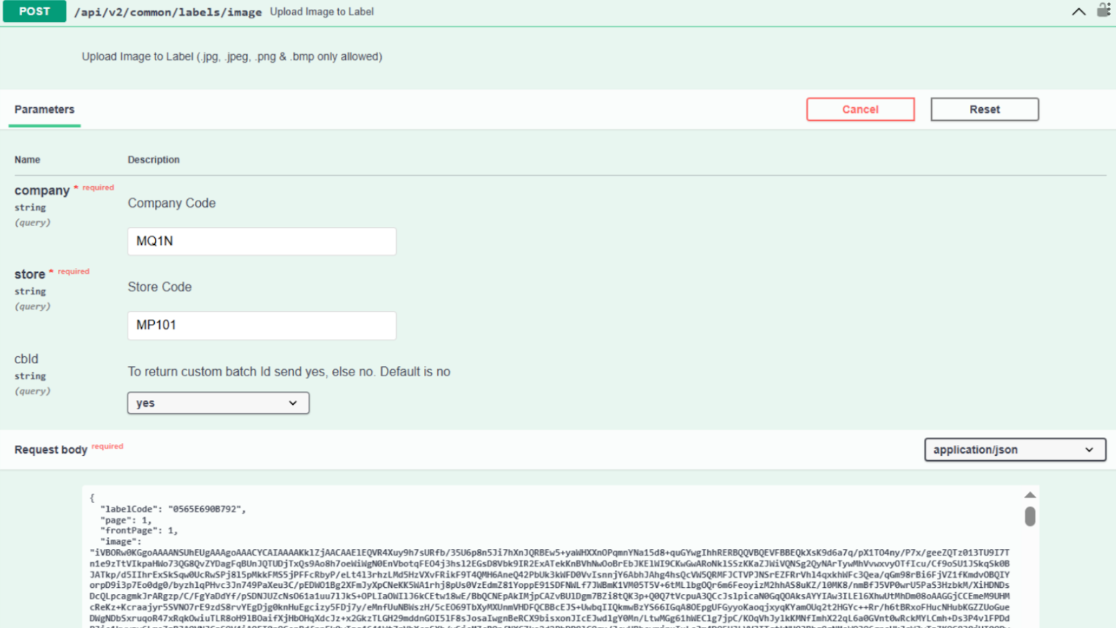
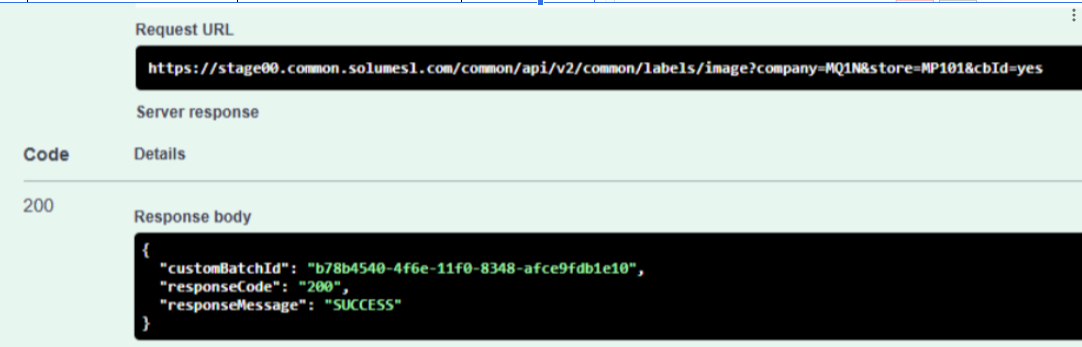
- If
cbid = No
4. WiFi tag password limit enhancements
To support broader WiFi setups, the following updates have been made:
- The WiFi password limit has been increased from 16 to 64 characters, matching the firmware’s maximum supported length.
- The WiFi SSID is now restricted to a maximum of 32 characters, as per firmware limitations.
These changes apply to both the creation and update of WiFi configurations. If the provided values exceed the allowed limits, clear validation messages will be returned to help users correct the input.
5. Label status display enhancements
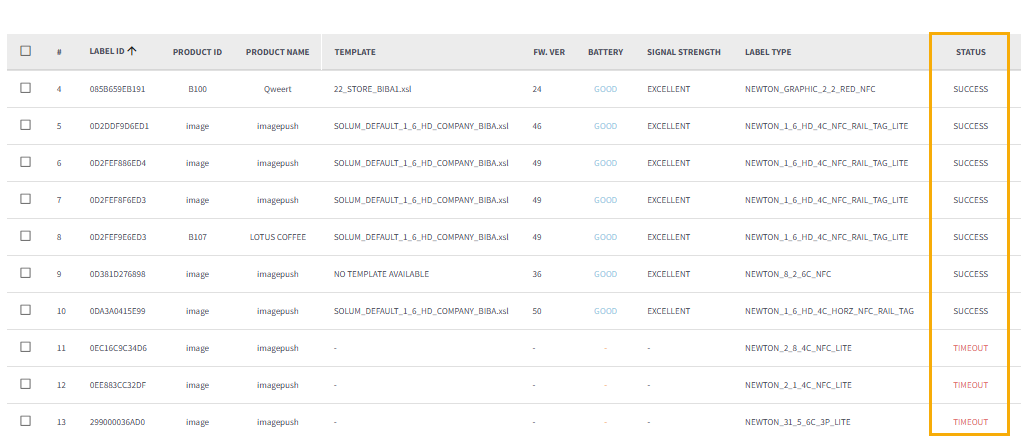
Note When the TTL (Time-to-Live) configuration—set by the Super Admin during company creation—expires, the label status previously appeared blank (-). This issue has now been resolved.
- Upon TTL expiry, the last known label status will now be retrieved and displayed. This ensures that the status does not appear blank (-).
- The last known label status will now be retrieved and displayed across all pages, including the Label Details section, based on the last modified date and status.
Additionally, if a label was previously assigned with 7 pages, and the maximum page limit is later reduced to 3, then:
- The excess pages will be removed on the next assignment.
- The label status will show as "Success" if the update completes correctly.
- If not, the status will be marked as "Timeout".
Now the Status filter also works as expected and provides a proper count of status.
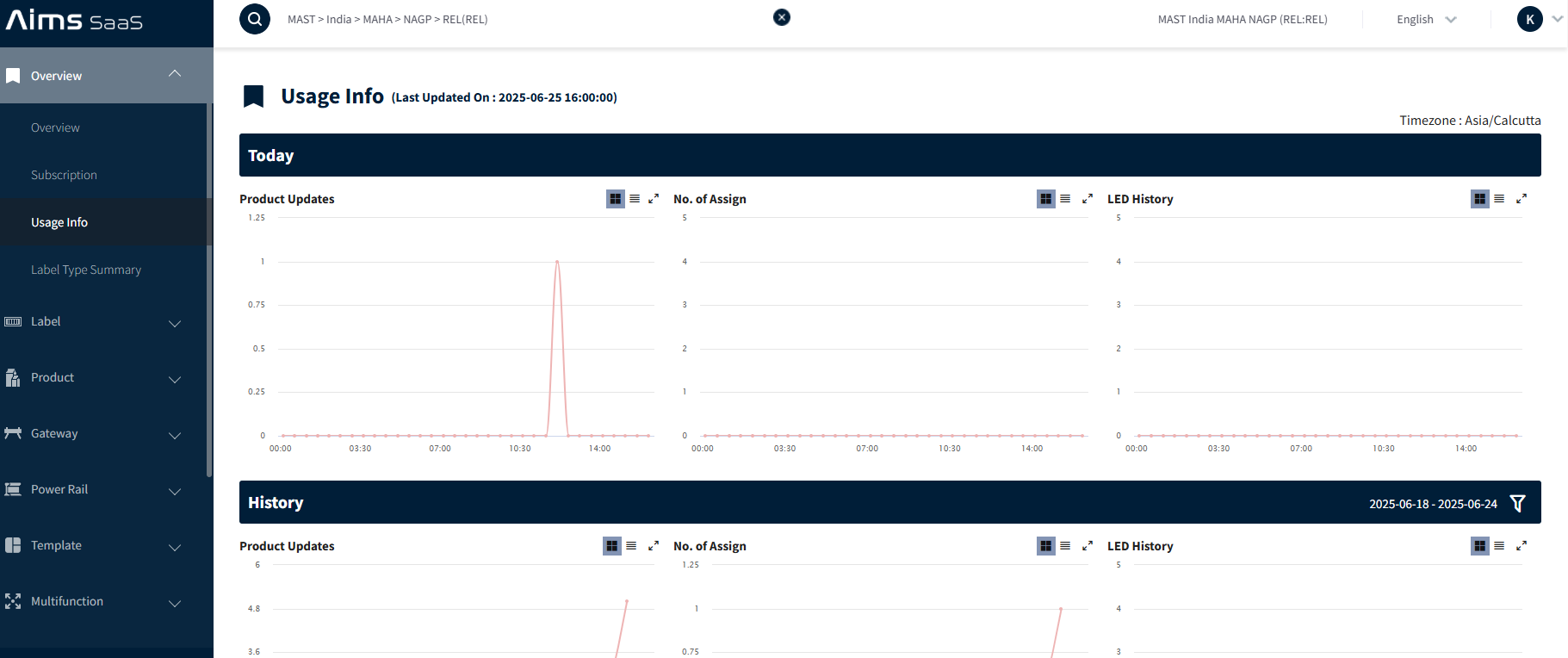
6. Usage info opened for level 1 users
The Usage Info page is accessible to all Level 1 users, including both Customer Level 1 and SI Partner (SIP) users. It allows them to view essential usage-related details such as label statistics and system activity.
This ensures transparency and visibility into ESL operations, helping users monitor system usage effectively from the ESL → Overview → Usage Info section on the dashboard.
7. Daily report changes
This version of the report is activated only when the DAILY_REPORT_VERSION property is set to v2 in the service.properties file of the API service.
Data Source: The report content is pulled from the Metrics Store Summary, and it reflects the previous day's statistics. Example: A report received on 12th June will contain data for 11th June.
File Format Update:
The report file format has changed from .xlsx to .csv for easier automation, parsing, and compatibility.
Email Delivery: The email format used to send the report remains unchanged.
Data Fields Included in the CSV Report:
The .csv report includes the following fields for each store:
- Store Code
- Store Name
- Total Labels
- Total Products
- Total Gateways25.
- Product Updates
- Assigns
- Unassigns
- Image Push
- LED Requests
- Images Generated
- Label Affected
Sample Email Daily Report Notification:
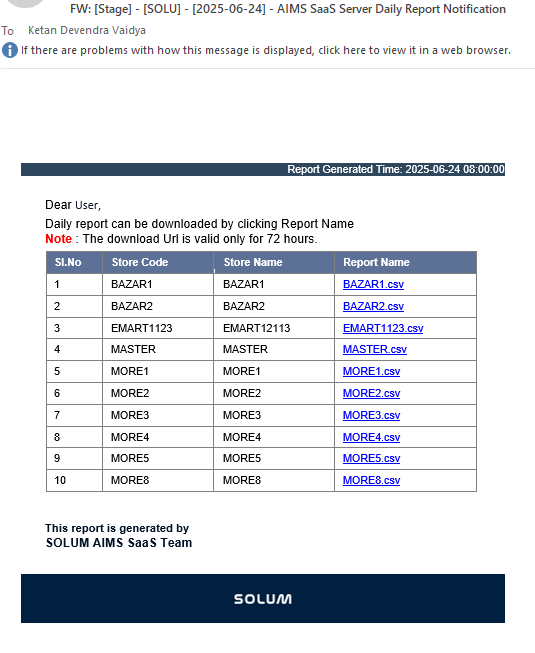
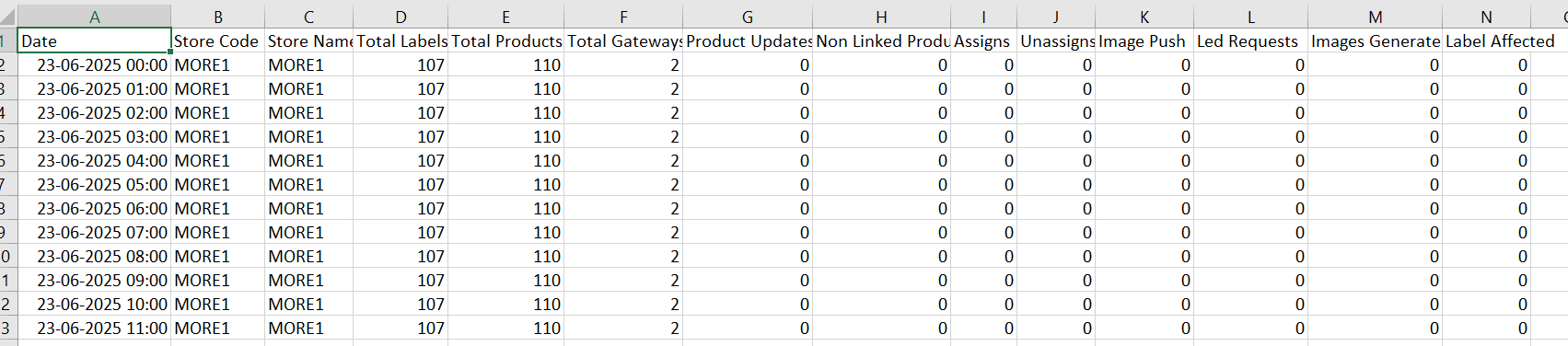
This detailed view helps stakeholders monitor daily ESL activity and system interactions at a glance.